
09. Request a withdrawal
Request withdrawal lets you request a transfer of wallet funds to a registered destination account. The screen is titled Withdraw and its main button says Request withdrawal.
1. Check the requirements
You need available funds and a registered payment and withdrawal account. In this test, the Leche en polvo return left USD 6,000 available and we used the fictitious account DEMO - Test withdrawal.
2. Submit the request
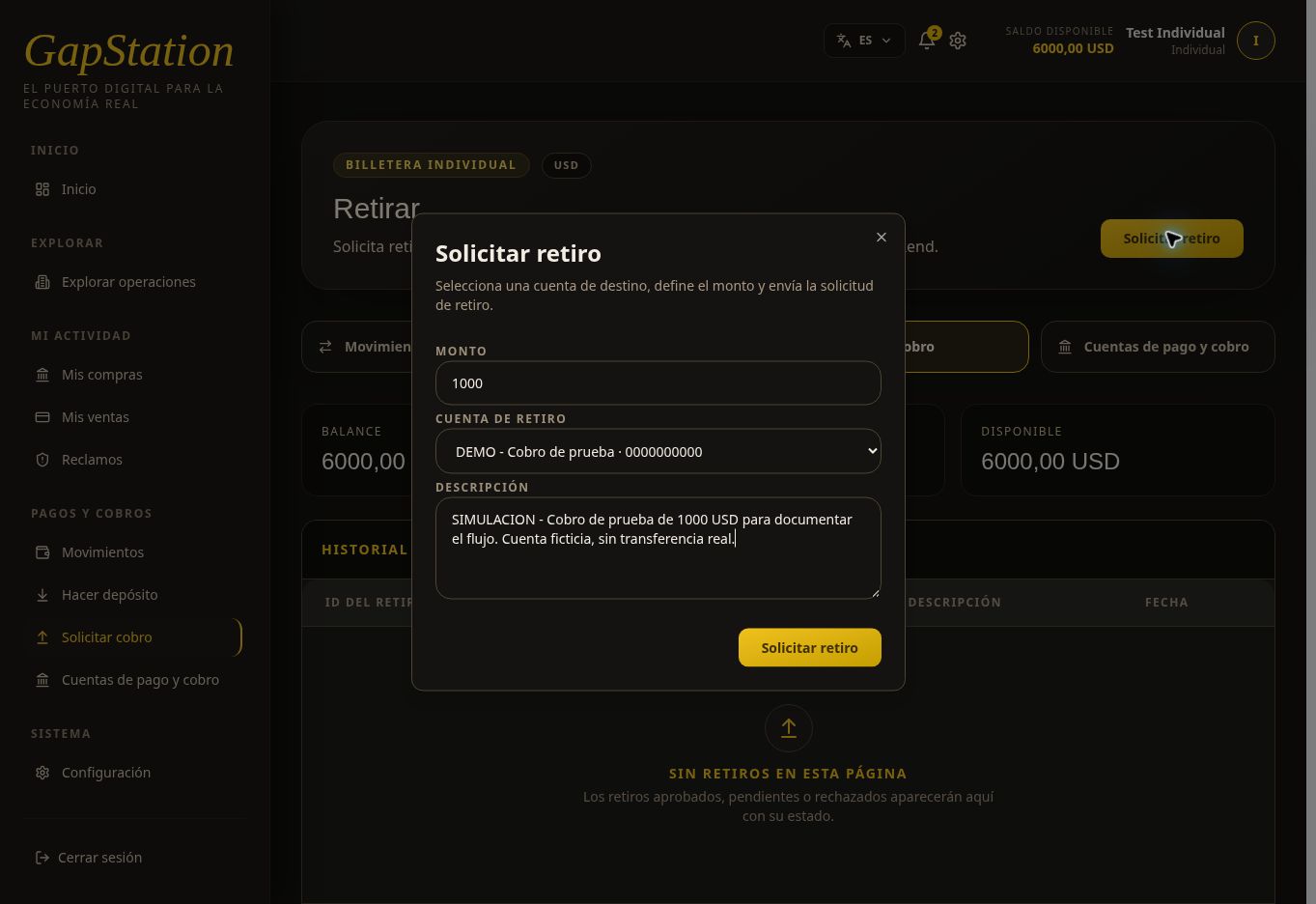
- Open Payments and withdrawals → Request withdrawal.
- Select Request withdrawal.
- Enter the amount. In this example: USD 1,000.
- Select the withdrawal account and verify the destination.
- Add a description that helps identify the request.
- Review the details and select Request withdrawal to submit.
The example description is marked SIMULATION and makes clear that the account is fictitious and no real transfer exists.
3. Verify the Pending status
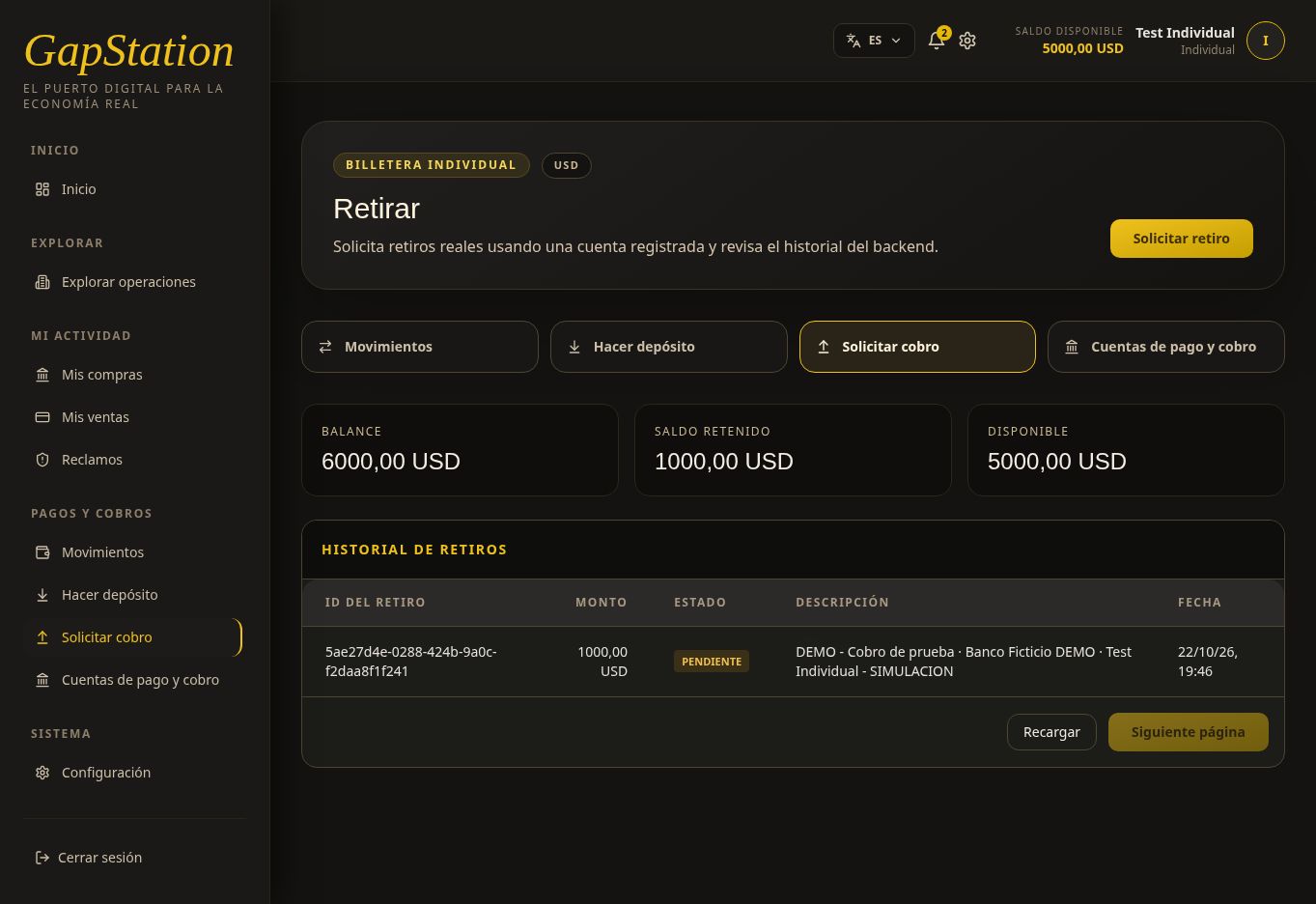
After submitting the request, the history shows:
| Detail | Verified value |
|---|---|
| Withdrawal ID | 5ae27d4e-0288-424b-9a0c-f2daa8f1f241 |
| Amount | USD 1,000 |
| Status | PENDING |
| Destination | DEMO - Test withdrawal / Fictitious Bank DEMO |
4. Understand the held balance
After refreshing the full page, the following was confirmed:
| Balance | Held | Available |
|---|---|---|
| USD 6,000 | USD 1,000 | USD 5,000 |
The requested amount is reserved while under review. Submitting a request is not the same as receiving payment. Pending status does not confirm a completed withdrawal.
5. Refresh and check approval
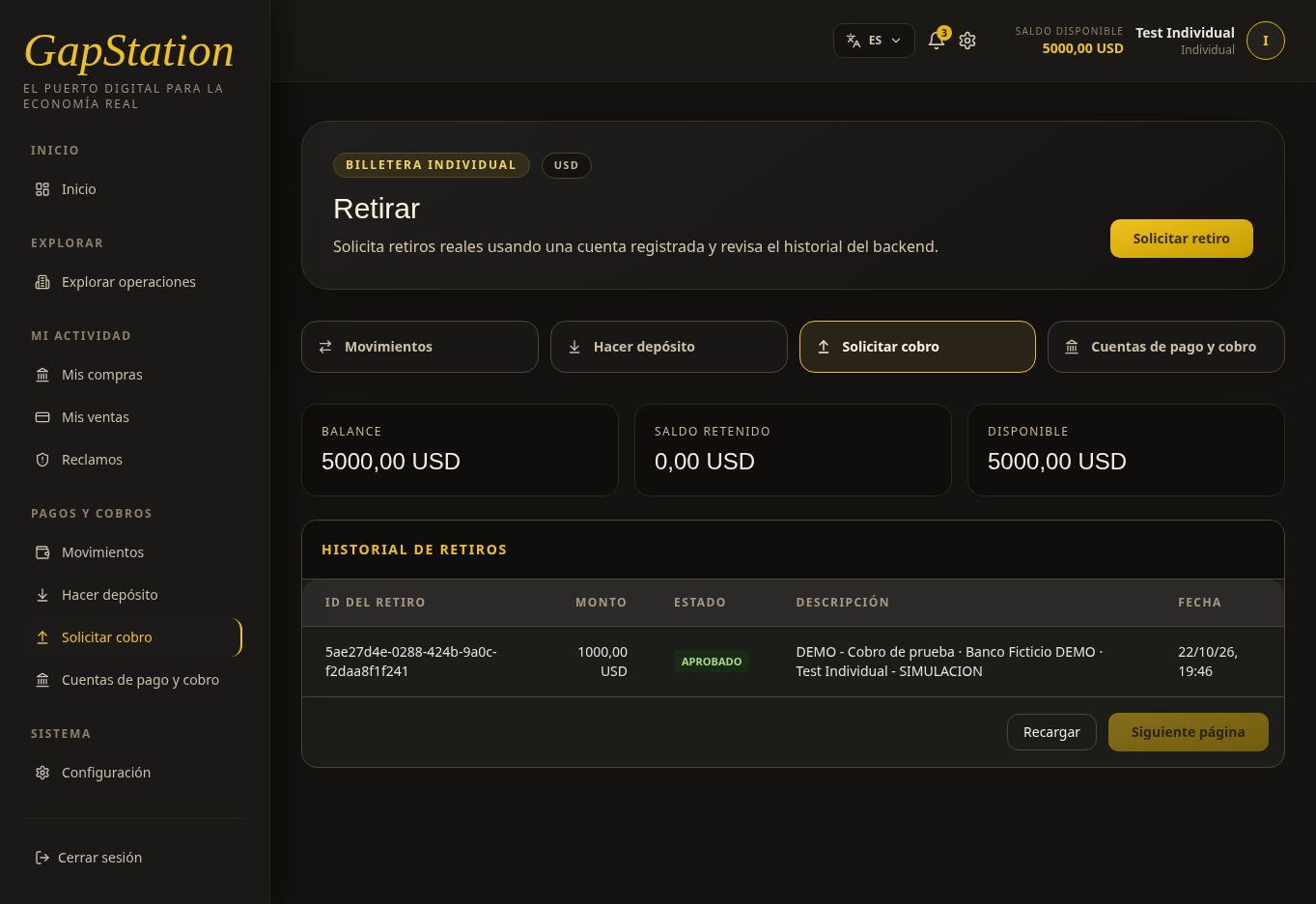
After review, select Refresh or reload the page. The same USD 1,000 request changed from PENDING to APPROVED. You do not need to submit another request.
| Status | Balance | Held | Available |
|---|---|---|---|
| PENDING | USD 6,000 | USD 1,000 | USD 5,000 |
| APPROVED | USD 5,000 | USD 0 | USD 5,000 |
After approval, the reserved USD 1,000 is deducted from the balance and held funds return to zero. Available funds remain USD 5,000 because that amount was already reserved; it is not charged twice.
6. Verify the withdrawal in Transactions
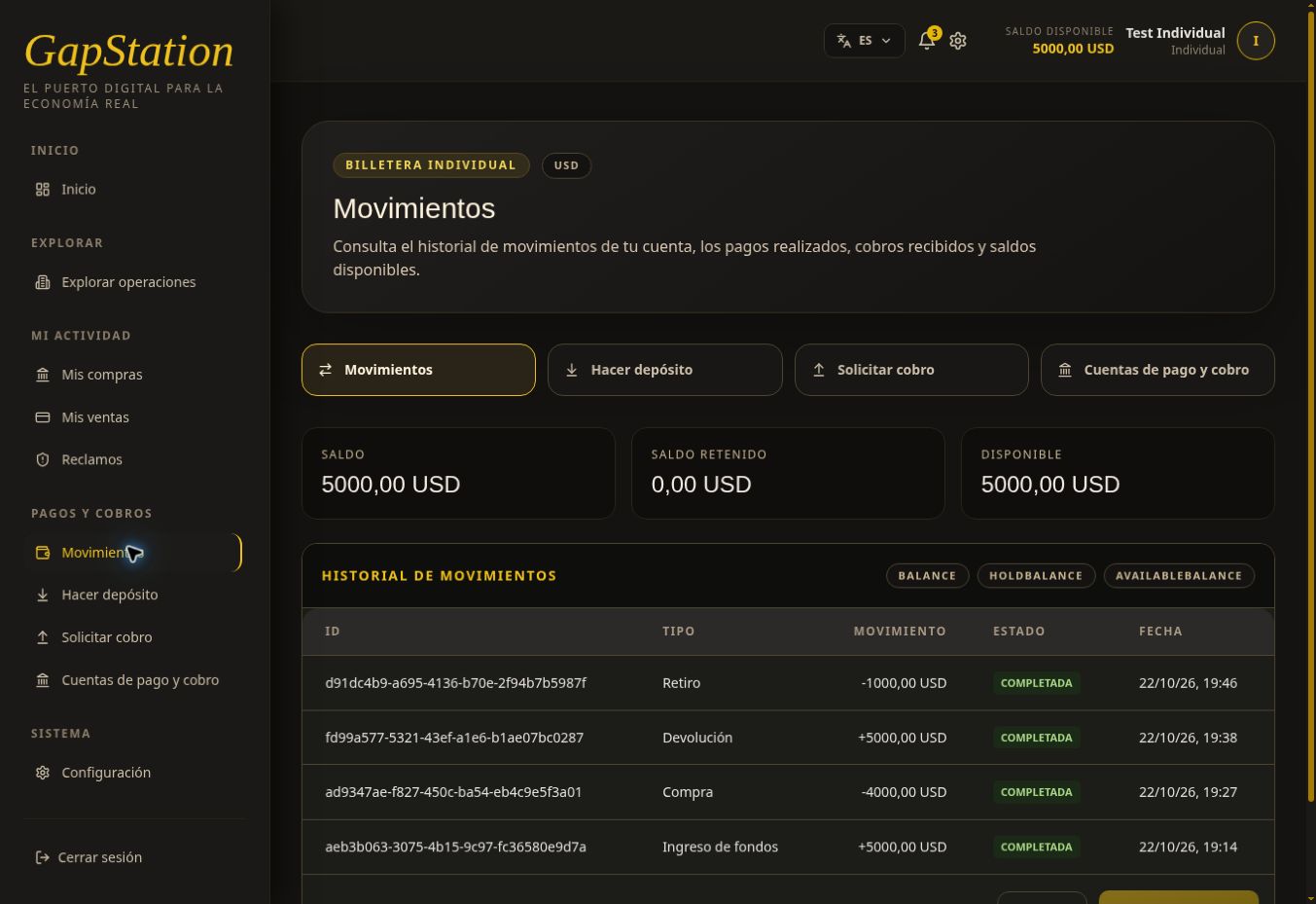
Transactions shows a Withdrawal of −USD 1,000 with COMPLETED status. The example’s final balance is USD 5,000.
7. Check the notification bell
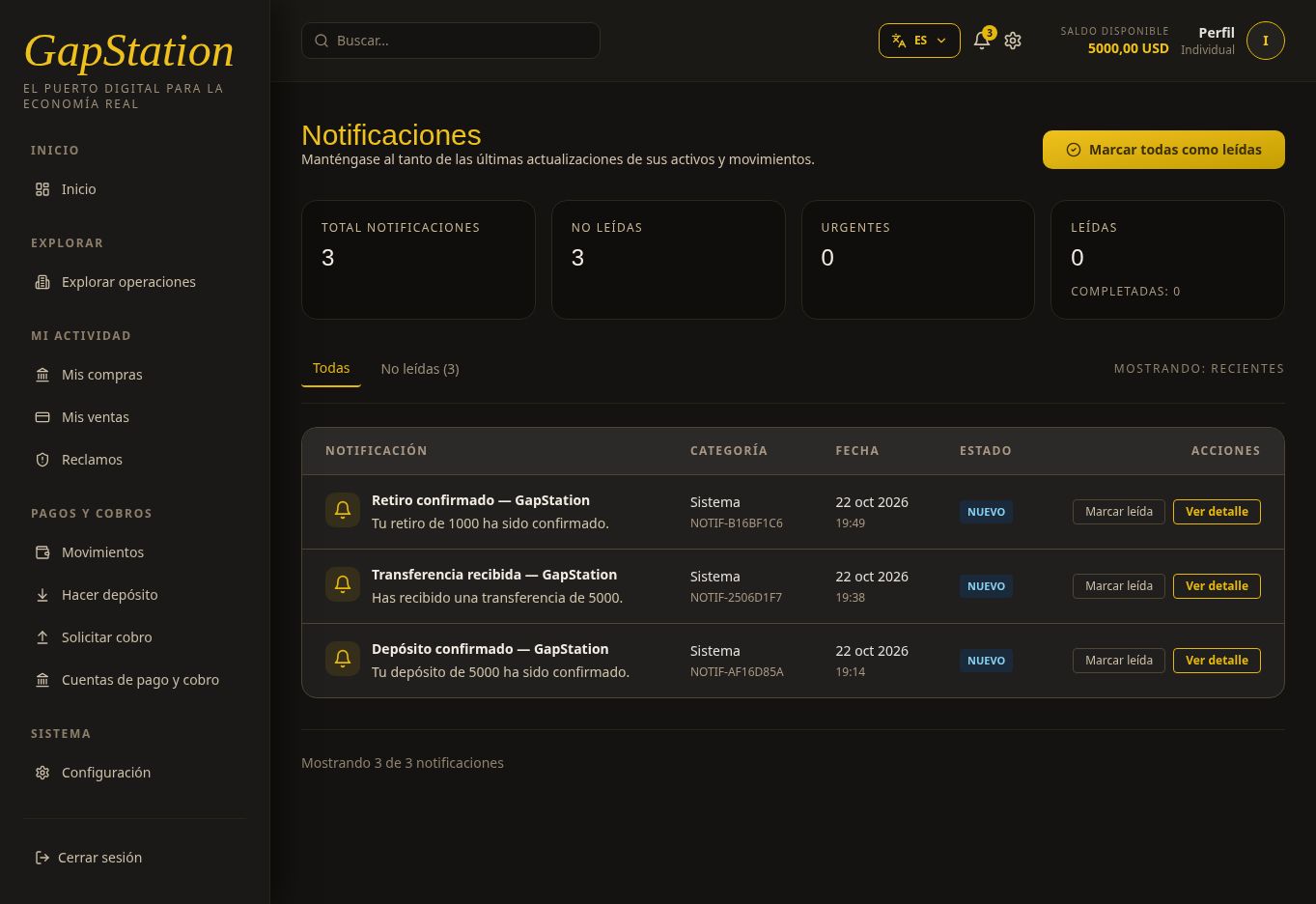
A notification also arrives in the bell. When opened, it shows Withdrawal confirmed — GapStation with the message “Your 1000 withdrawal has been confirmed.”
This demonstration uses simulated funds and a fictitious account. The approval and transaction show the result in the test app; they do not confirm a real bank transfer.
If you need help
Give support the withdrawal ID, status, and amount. Do not post real account details in public channels. This example used only simulated funds and a fictitious destination.
No comments to display
No comments to display