
06. View my sales and deliveries
My Sales lets you review returns or settlements linked to your purchases: product sales for resale and, when applicable, product deliveries.
1. Review the confirmed return
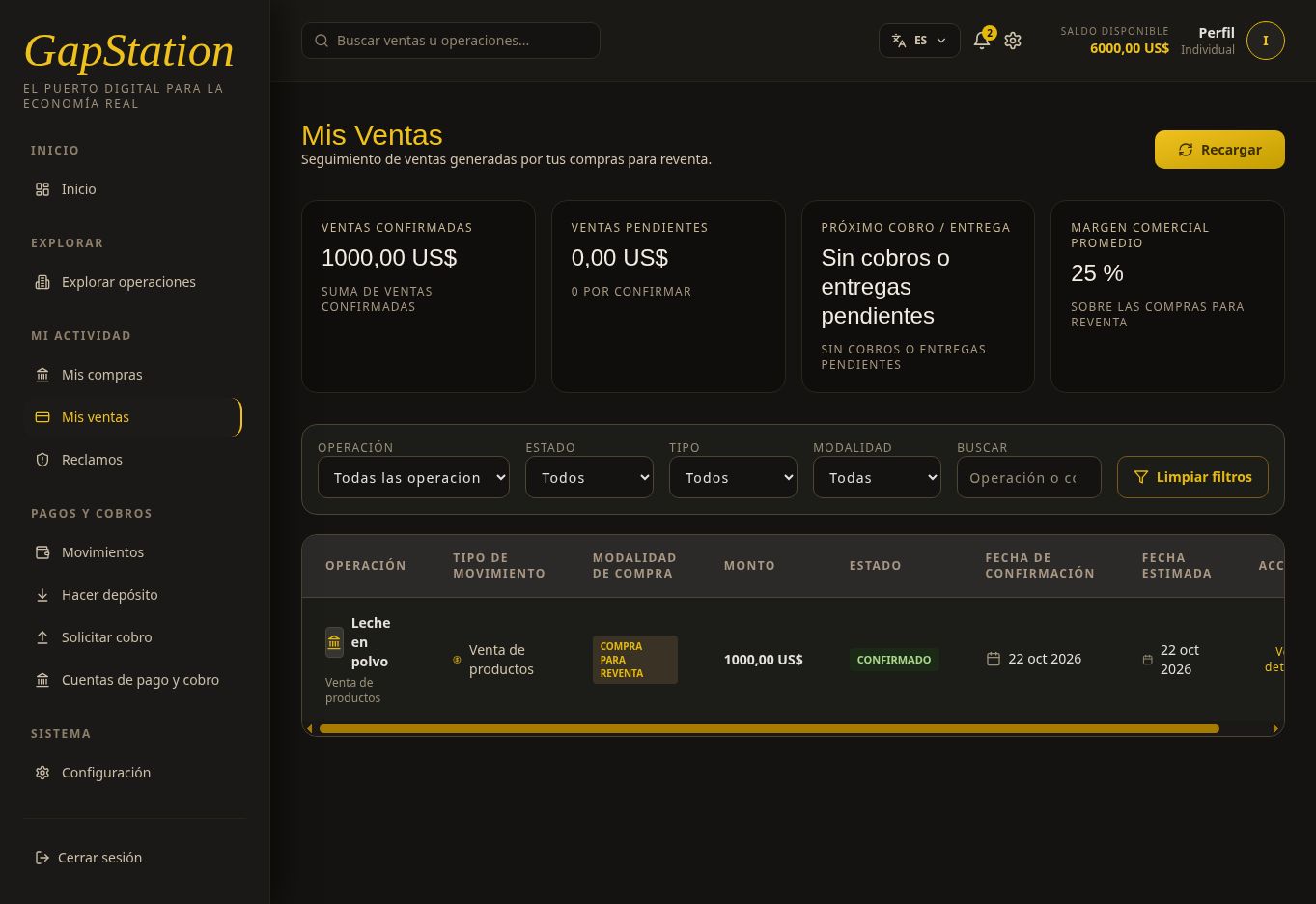
Open My activity → My sales. Filter by opportunity, status, type, or mode. You can search and use Clear filters or Refresh.
The Leche en polvo example has a Confirmed entry of type Product sale in Buy for Resale mode. The row and confirmed-sales card show USD 1,000, corresponding to the example’s commercial profit. That amount alone does not represent all the money returned to the wallet.
2. Open View details
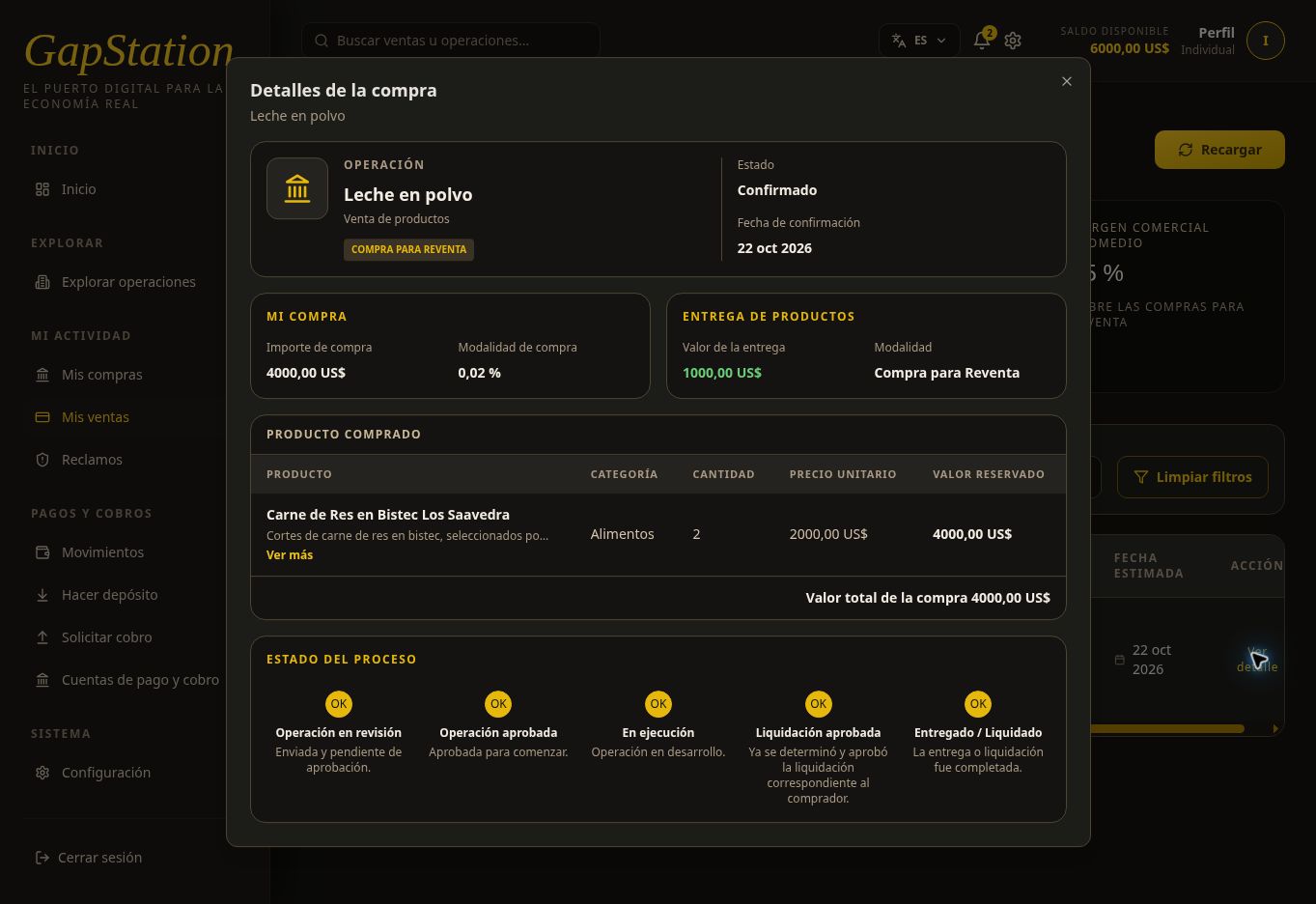
In the row, select View details. The popup is titled Purchase details and shows the opportunity, status, confirmation date, purchase amount, products, and process progress.
It shows a USD 4,000 purchase, two units, and a process through Delivered / Settled. Some labels in this test view say “Product delivery” or “Delivery value” even for a resale purchase. Always check the mode and compare amounts with Transactions.
3. How the balance changed from USD 1,000 to USD 6,000
| Step | Amount |
|---|---|
| Balance remaining after purchase | USD 1,000 |
| Purchase amount returned | USD 4,000 |
| Profit in the example | USD 1,000 |
| Total return credited | USD 5,000 |
| Balance after settlement | USD 1,000 + 5,000 = USD 6,000 |
The USD 6,000 includes the money you already had; it is not USD 6,000 of profit. Transactions shows a completed Return entry of +USD 5,000. In this case, the balance confirms the return was credited; an estimated figure before settlement would not.
4. Withdraw to a destination account
The credited balance stays in your wallet. To request a withdrawal, first register a payment and withdrawal account, then use Request withdrawal. A confirmed return and a withdrawal request are separate processes.
These screenshots are from the test environment and were taken before the later USD 1,000 withdrawal request.
No comments to display
No comments to display