04. Buy in an opportunity
Learn how to select products, use the automatic budget, and confirm a purchase. This example uses Leche en polvo, the Buy for Resale mode, and a test starting balance of USD 5,000.
First, review how to find and inspect an opportunity. If you need funds, follow the deposit guide and wait for the balance to be credited.
1. Select Buy now and review the summary
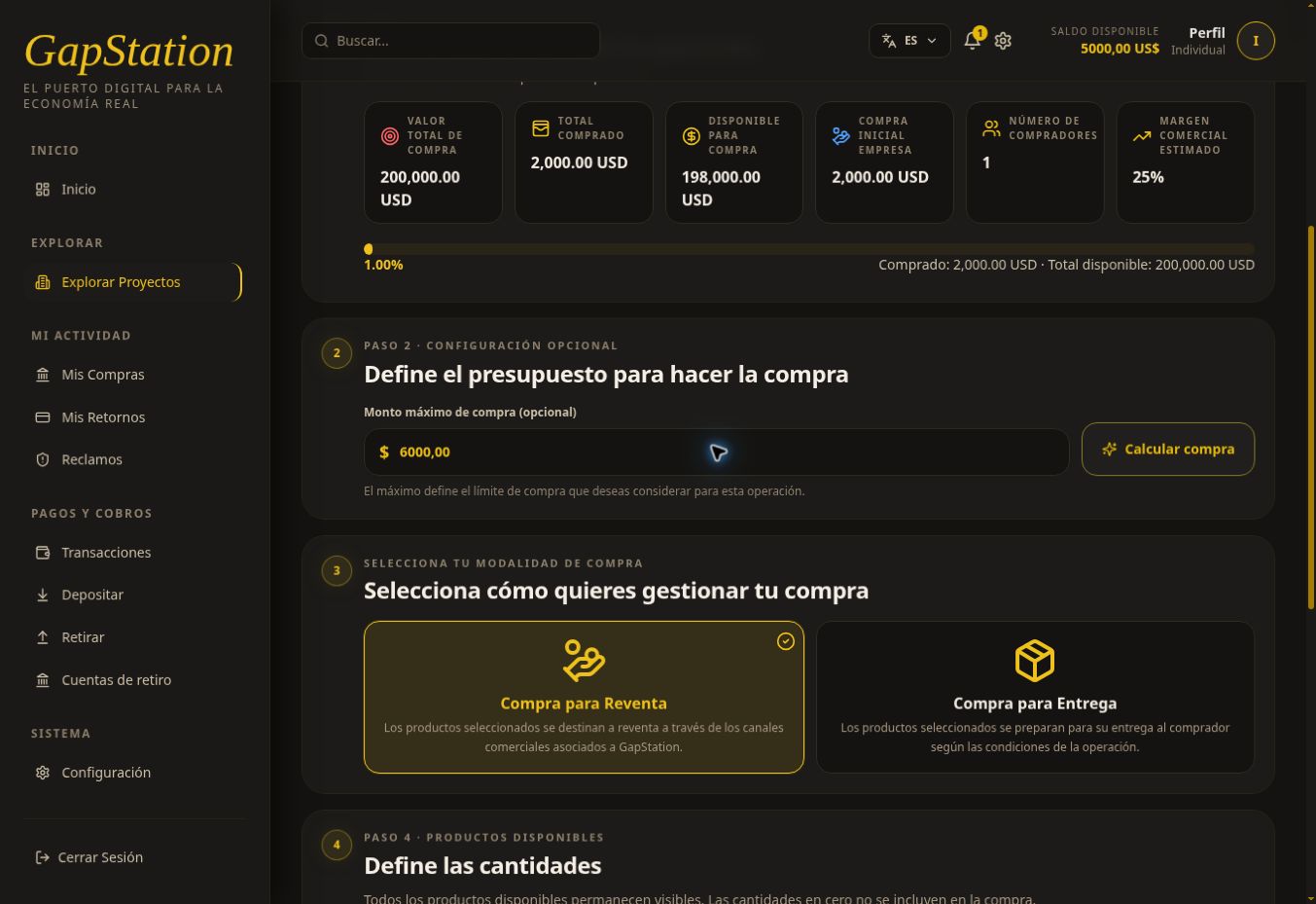
From the opportunity details, select Buy now. The page is titled Buy in the opportunity; its URL may contain /invest. Check the name, responsible company, availability, estimated margin, and dates.
Opportunity-wide availability is not your balance. An opportunity showing USD 198,000 available for purchase does not mean your account has that amount.
2. Set a purchase budget
This step is optional. Enter your limit in Maximum purchase amount and select Calculate purchase.
What does it do? The system proposes quantities of available products to maximize estimated commercial profit without exceeding the budget. Always review the selection and summary. With multiple products, the proposal may distribute the budget across them.
- Budget: the maximum amount you want to spend.
- Available balance: the money your wallet lets you use.
- Calculated total: the cost of the selected quantities.
The total may be lower than the budget because of prices, quantities, and availability. Calculation does not add funds or confirm the purchase. You can also set or adjust quantities manually; review the total after each change. Quantities set to zero are excluded.
3. Choose the purchase mode
- Buy for Resale: products are intended for resale through GapStation’s associated sales channels. This is the mode used in the demonstration.
- Buy for Delivery: products are prepared for delivery to the buyer under the opportunity terms.
Choose the mode that matches your goal. This test completed the resale flow; no second delivery purchase was made.
4. Insufficient balance example: USD 6,000 budget
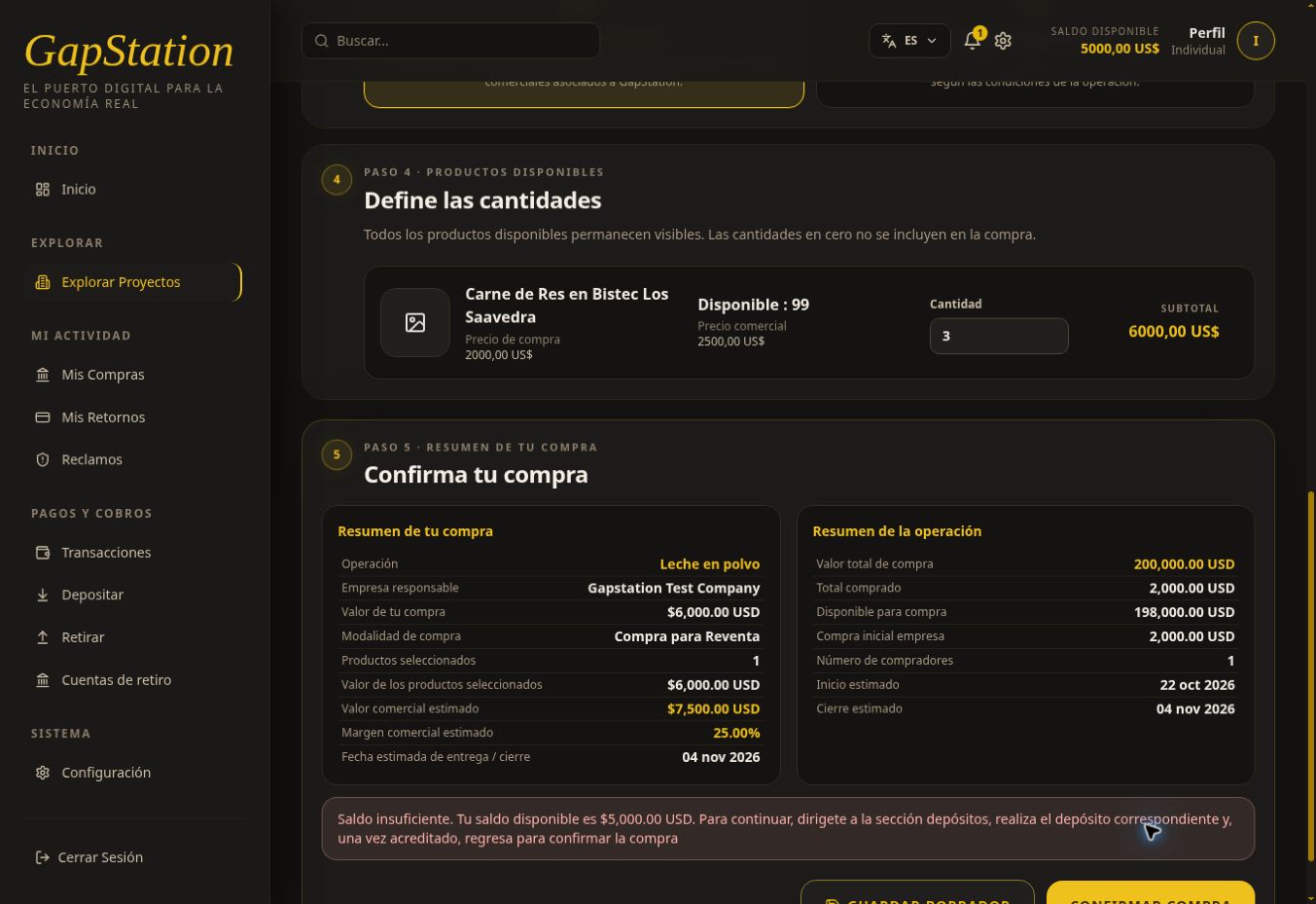
With USD 5,000 available, we entered USD 6,000 and selected Calculate purchase. The system selected 3 units × USD 2,000 = USD 6,000. The budget was respected, but the total exceeded the account balance.
Selecting CONFIRM PURCHASE showed an Insufficient balance error, stating that USD 5,000 was available and a deposit was needed. This attempt did not create a confirmed purchase.
To resolve it, lower the budget or quantities, or make a deposit using this guide. If you deposit, wait for approval and check the new balance before confirming again.
5. Adjust the purchase to the USD 5,000 balance
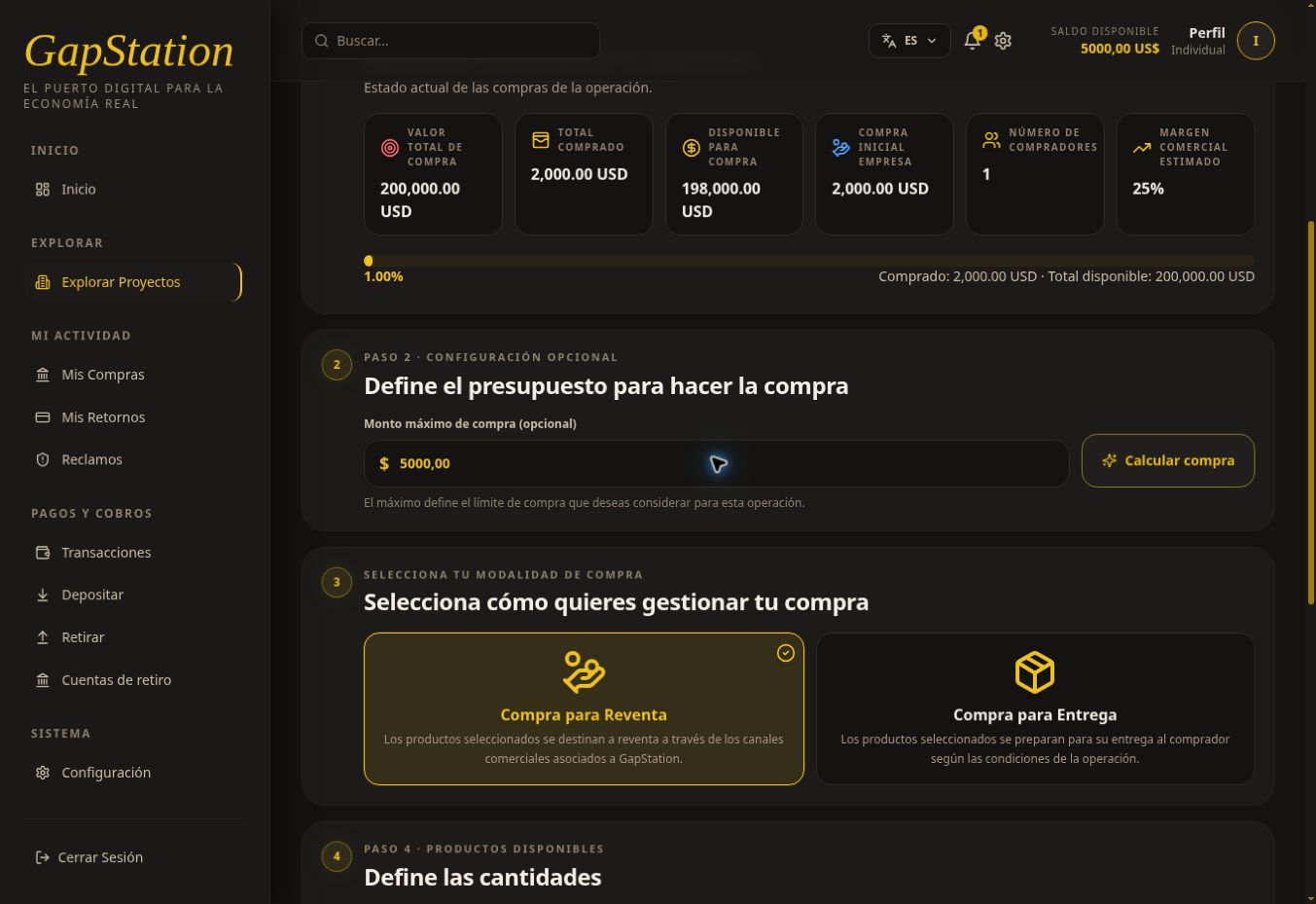
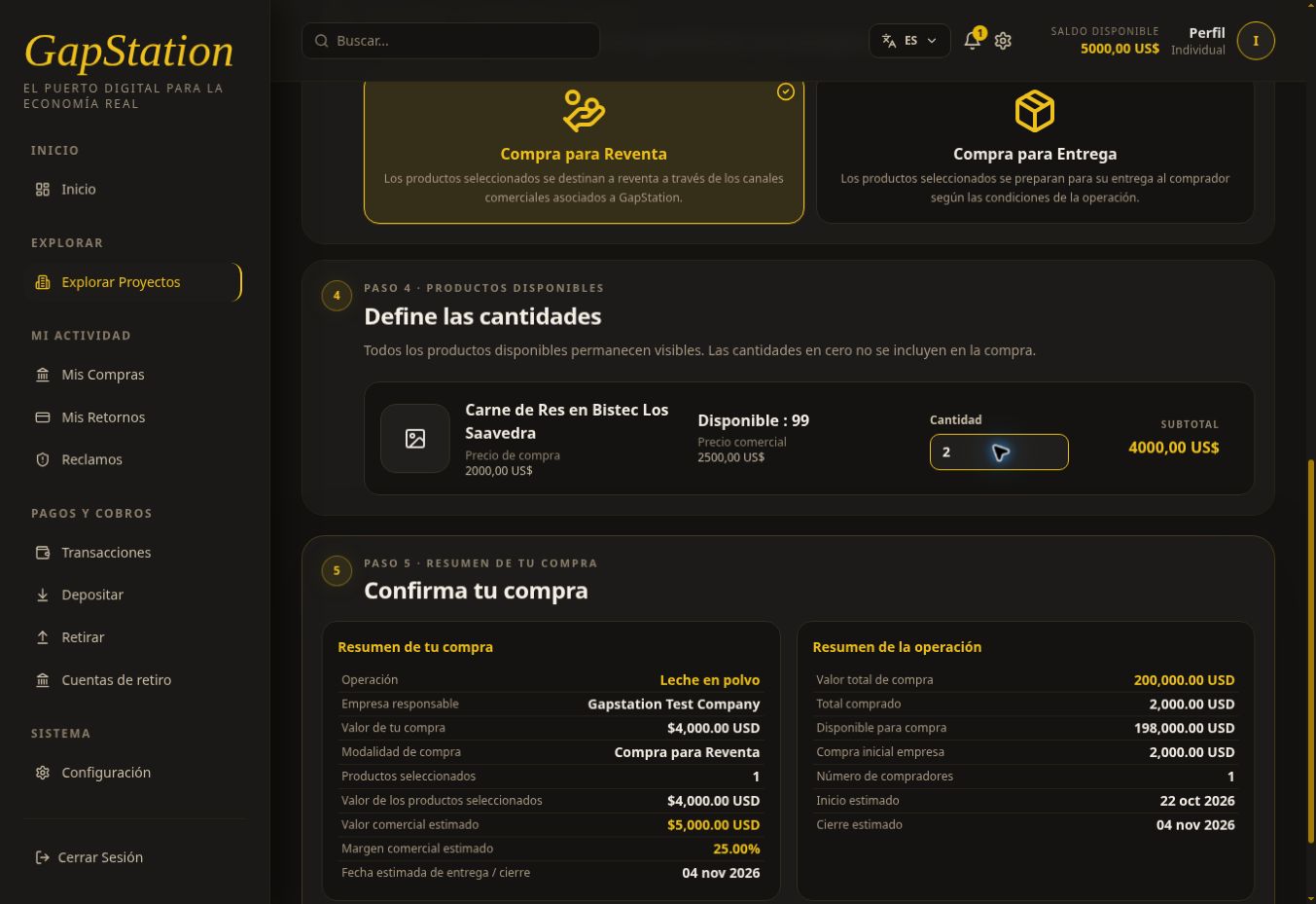
We changed the budget to USD 5,000 and selected Calculate purchase again.
The test product costs USD 2,000 per unit. The calculation selected 2 units for USD 4,000. A third unit would cost USD 6,000 and exceed the limit, leaving USD 1,000 unused.
| Item | Failed attempt | Adjusted purchase |
|---|---|---|
| Starting balance | USD 5,000 | USD 5,000 |
| Budget | USD 6,000 | USD 5,000 |
| Quantity selected | 3 units | 2 units |
| Purchase total | USD 6,000 | USD 4,000 |
| Result | Insufficient balance | Confirmed |
Important: The opportunity is called Leche en polvo, but its only registered product is Carne de Res en Bistec Los Saavedra. These are test data. This demonstration checks the calculation for one product; it does not test combinations of multiple products.
6. Review quantities and the summary before confirming
Under Define quantities, check the products and subtotals. Under Confirm your purchase, review the opportunity, company, mode, purchase value, commercial value, and estimated date.
This test summary showed a USD 4,000 purchase, estimated commercial value of USD 5,000, and estimated margin of 25%. The estimated difference is USD 1,000; it is not a payment received and is not added to your balance immediately.
SAVE DRAFT keeps a purchase without confirming it. To complete the purchase, select CONFIRM PURCHASE after reviewing everything. Do not click repeatedly while it is processing.
7. Check the confirmed purchase
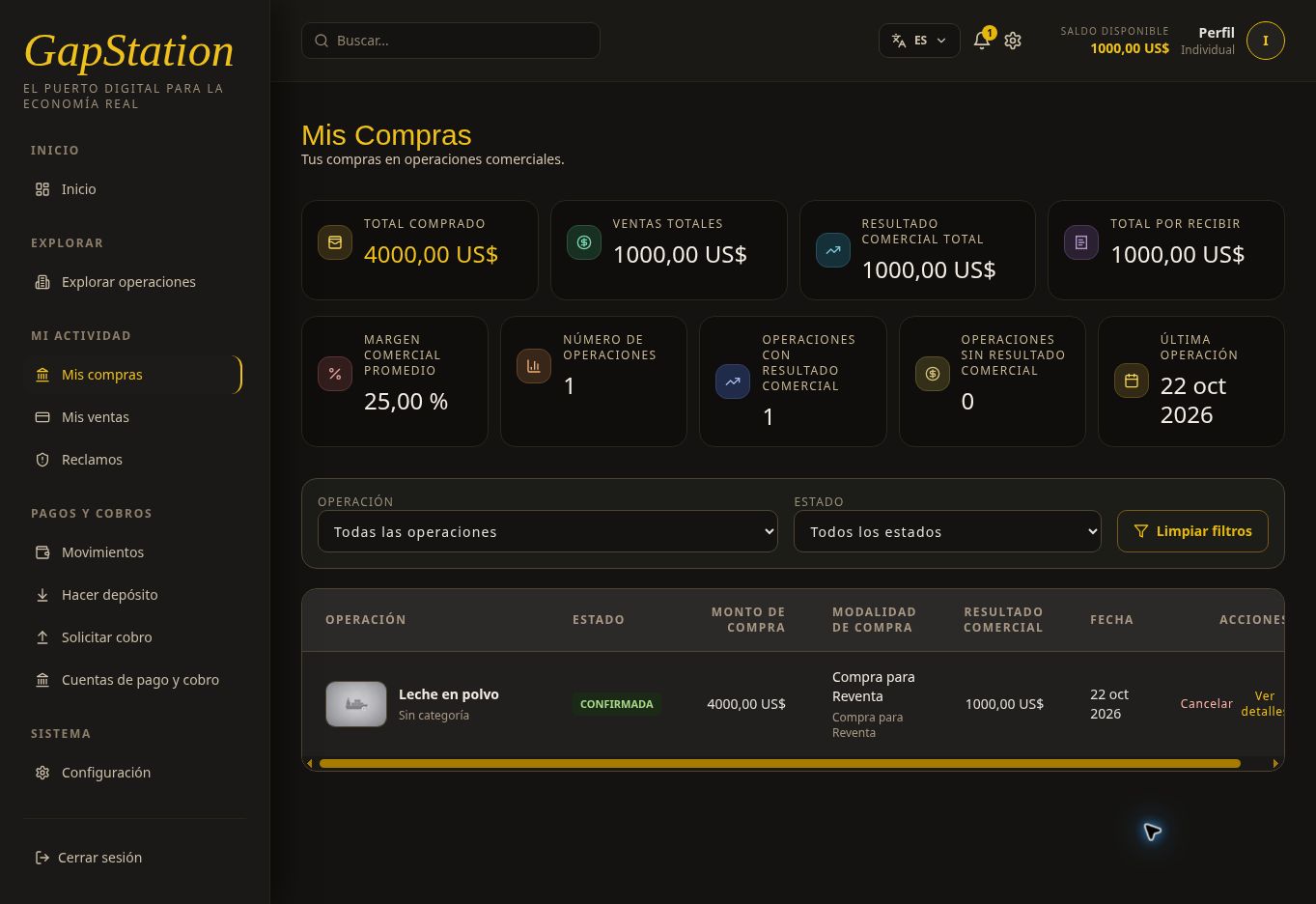
After confirmation, the app opened My Purchases. Leche en polvo appeared as CONFIRMED for USD 4,000 in Buy for Resale mode. The available balance decreased from USD 5,000 to USD 1,000.
8. Open View details
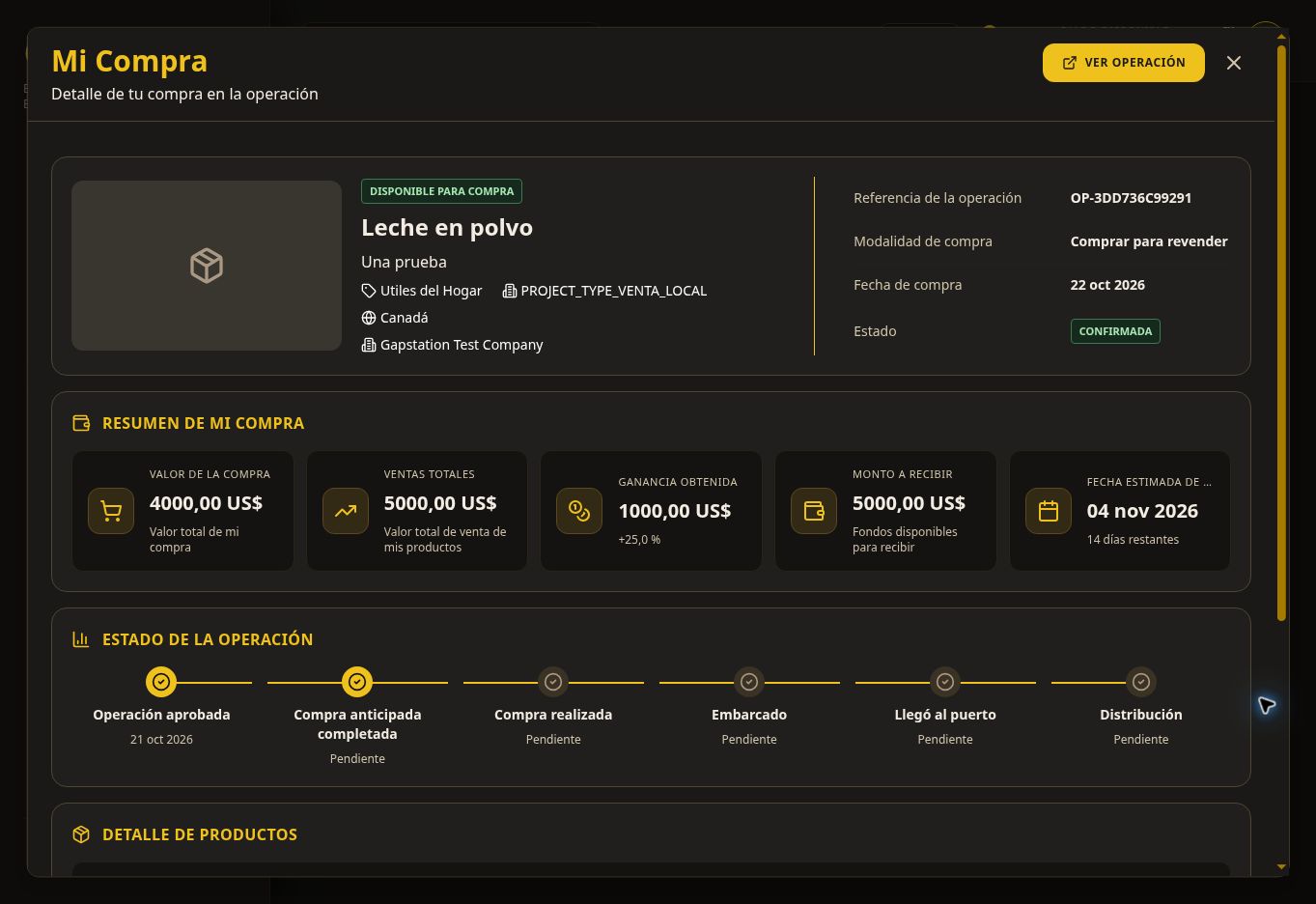
In the purchase row, select View details. The My Purchase popup shows the opportunity reference, mode, date, status, summary, tracking, and products. This example showed two units with RESERVED status.
How to interpret the amounts: Some labels in the test environment say “Profit earned,” “Total sales,” or “Amount to receive” even while products are still reserved. Do not treat those labels as proof of a completed sale or paid funds. Check the sales status and actual wallet transactions.
This full flow used simulated funds in the test environment. Prices, statuses, availability, and dates may change.