Buyer Guide (English)
Use this guide to manage your buyer account: dashboard, deposits, opportunities, purchases, returns, transactions, withdrawal accounts, and settings. Step-by-step instructions include screenshots from the test environment; some interface labels in the screenshots appear in Spanish. For account registration and sign-in, see Getting Started with GapStation.
- 01. Your Personal Dashboard
- 02. Make a deposit before buying
- 03. Browse and review opportunities
- 04. Buy in an opportunity
- 05. View my purchases
- 06. View my sales and deliveries
- 07. Review account transactions
- 08. Register payment and withdrawal accounts
- 09. Request a withdrawal
- 10. Basic account settings
01. Your Personal Dashboard
The Personal Dashboard is the starting point for reviewing your purchases, settlements, and account activity. Open Home from the side menu.
1. Your dashboard with activity
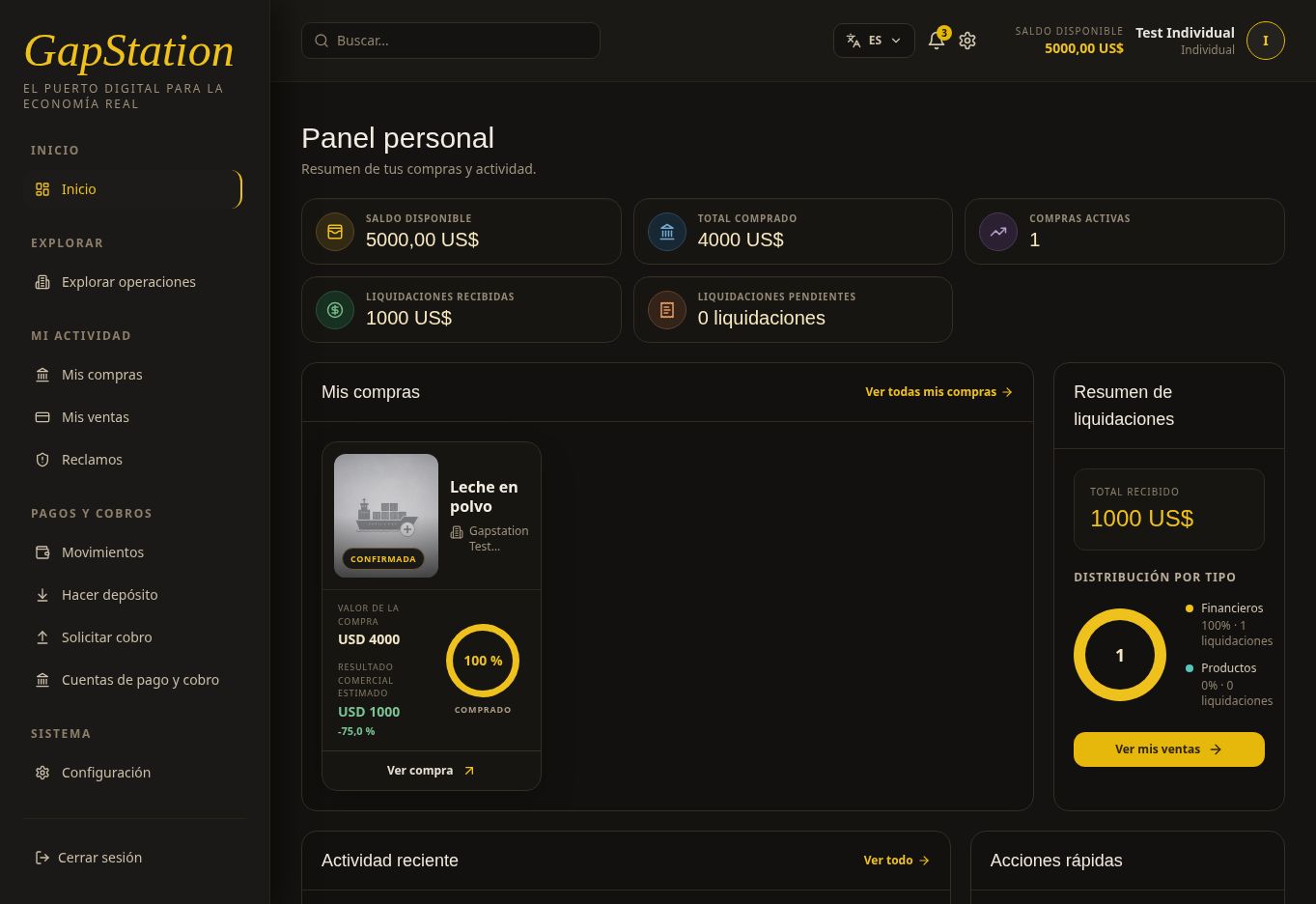
This screenshot shows the complete test example: a USD 5,000 deposit, a USD 4,000 purchase, a USD 5,000 return, and an approved USD 1,000 withdrawal. All figures belong to the test environment.
2. How to read the indicators
| Indicator | Example value | What it means |
|---|---|---|
| Available balance | USD 5,000 | Money you can use after the approved withdrawal. |
| Total purchased | USD 4,000 | Amount of the purchase; it is not your current balance. |
| Active purchases | 1 | Count shown by the dashboard. Open the purchase details to check its status. |
| Settlements received | USD 1,000 | This test shows the recorded profit. The wallet received a USD 5,000 return: USD 4,000 principal plus USD 1,000 profit. |
| Pending settlements | 0 settlements | No pending settlements appear in the summary. |
Do not add all indicators together: they represent different concepts. Use Transactions to reconstruct the balance: 5,000 − 4,000 + 5,000 − 1,000 = USD 5,000.
3. Open a purchase from the dashboard
My Purchases shows the Leche en polvo card as CONFIRMED, with a purchase value of USD 4,000 and estimated commercial return of USD 1,000. Select View purchase for details or View all purchases to open the full list.
The 100% purchased indicator is the progress shown for the operation purchase; it is not a profit percentage.
Observed issue in this version: the card shows −75.0% beside the estimated commercial return. That percentage does not match the example profit and should not be interpreted as a confirmed loss. USD 1,000 profit on a USD 4,000 purchase is 25%. Check the amounts in the details and Transactions.
4. Review the settlement summary
The block shows USD 1,000 received and one financial settlement: 100% financial and 0% product. This distribution indicates the settlement type, not the return rate. Select View my sales and review Sales and returns to understand the result.
5. Review recent activity and notifications
Recent Activity lists the USD 5,000 deposit, the USD 5,000 return transfer, and the confirmed USD 1,000 withdrawal. These are notifications from the example flow; use the Transactions history to verify actual wallet inflows and outflows.
Select View all or the bell icon in the top bar to open notifications. The counter shows unread notifications; there are three in the screenshot.
6. Continue from the quick links
- Explore opportunities: browse opportunities and open their details.
- My purchases: review your recorded purchases.
- My sales: review returns and settlements.
- Make a payment: open Make deposit to add balance. Follow the deposit guide.
Is your account still empty?
A new account normally has no purchases or activity. You can browse opportunities; before buying, make a deposit and wait for approval. After completing an action, refresh the page and wait for it to finish loading.
02. Make a deposit before buying
Before buying, you need available funds in your wallet. This guide shows how to create a manual deposit, attach proof of payment, and submit it for review.
Test example: USD 5,000, reference GAP-9UN24O. The bank details shown are fictitious and the receipt is a simulation with no banking validity. Do not use these details to make real payments.
1. Open Make deposit
From Payments and withdrawals, select Make deposit. Review your balance, held balance, and available amount. Select Create deposit.
2. Choose a payment method and enter the amount
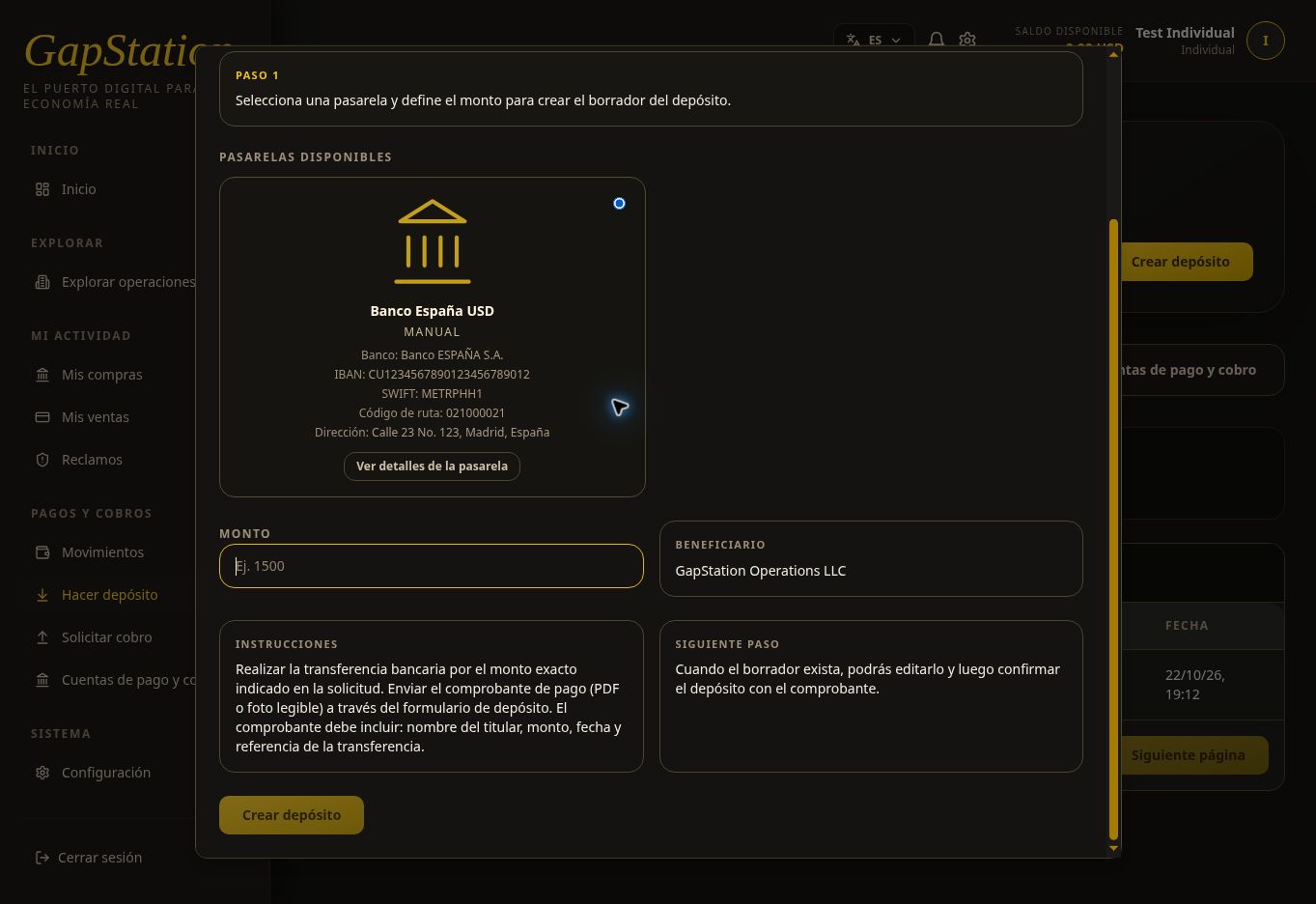
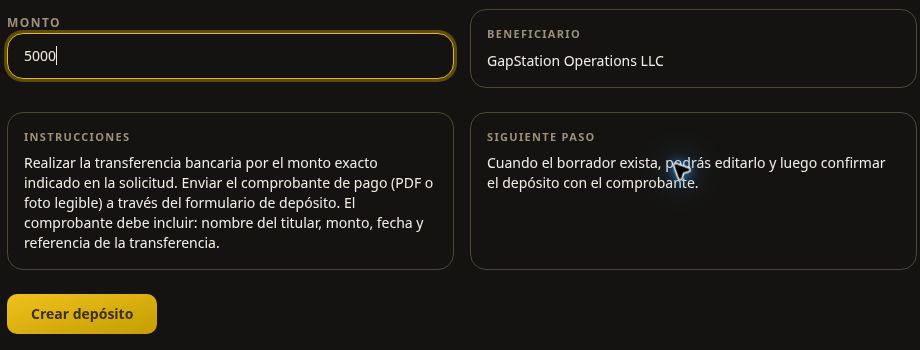
In the popup, select an available payment method. This example uses Banco España USD, a manual test method. Review the beneficiary, destination details, and instructions.
Enter 5000 in Amount. Check it and select Create deposit once.
3. Review the draft and keep the reference
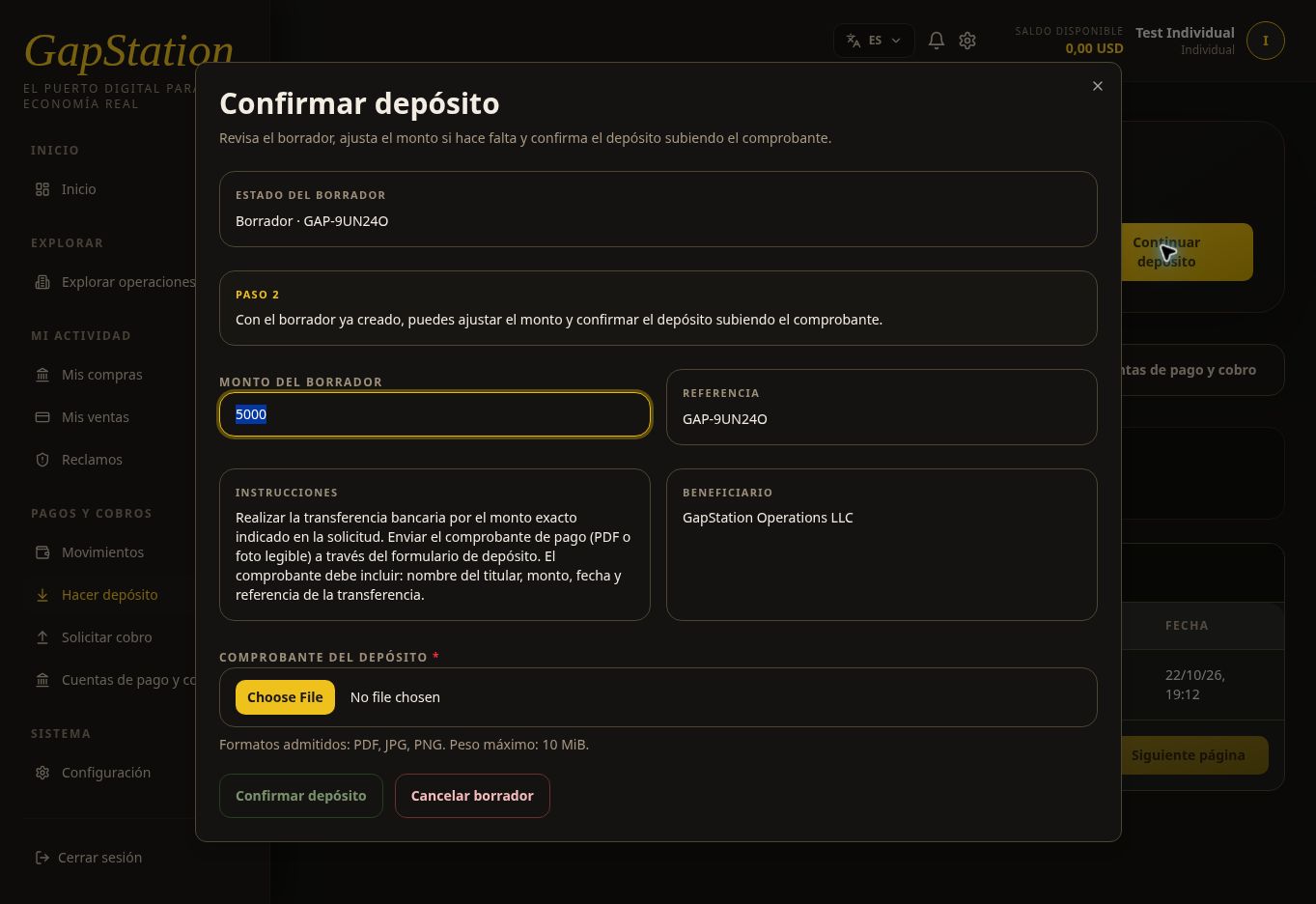
The popup changes to Confirm deposit. This draft has reference GAP-9UN24O and an amount of USD 5,000. Keep the reference so you can identify it in your history or when contacting support.
You can adjust the draft amount before confirming. If you close the popup, use Continue deposit to resume it; you do not need to create another one. Cancel draft is a separate action from closing the window.
4. Attach proof of payment
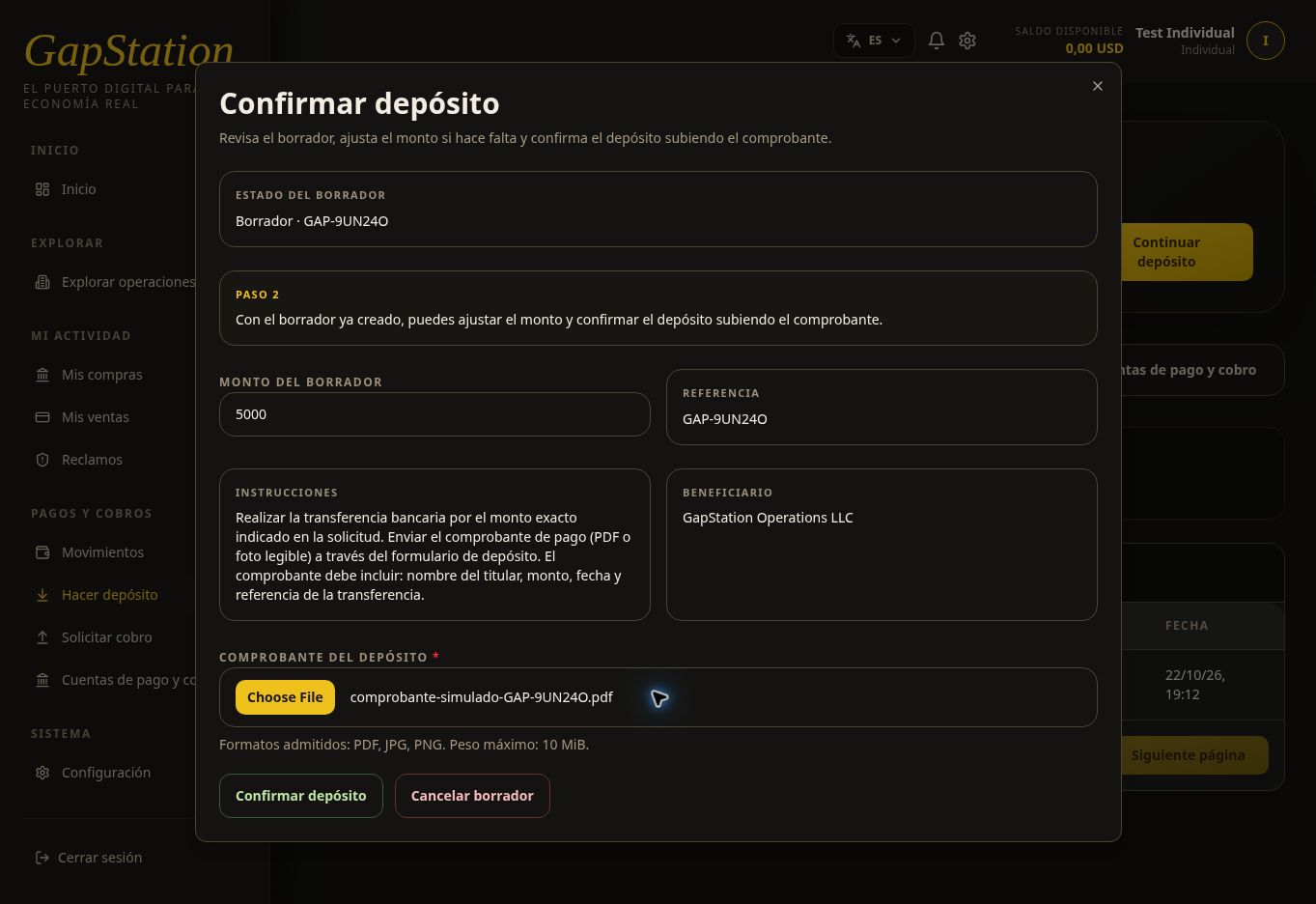
For a real deposit, make the payment following the payment method instructions and keep a readable receipt showing the account holder, amount, date, and transfer reference. Then select Select deposit receipt and choose the file.
PDF, JPG, and PNG files up to 10 MiB are accepted. This demonstration used comprobante-simulado-GAP-9UN24O.pdf, clearly marked as a simulation; no real transfer was made.
5. Confirm and check the pending status
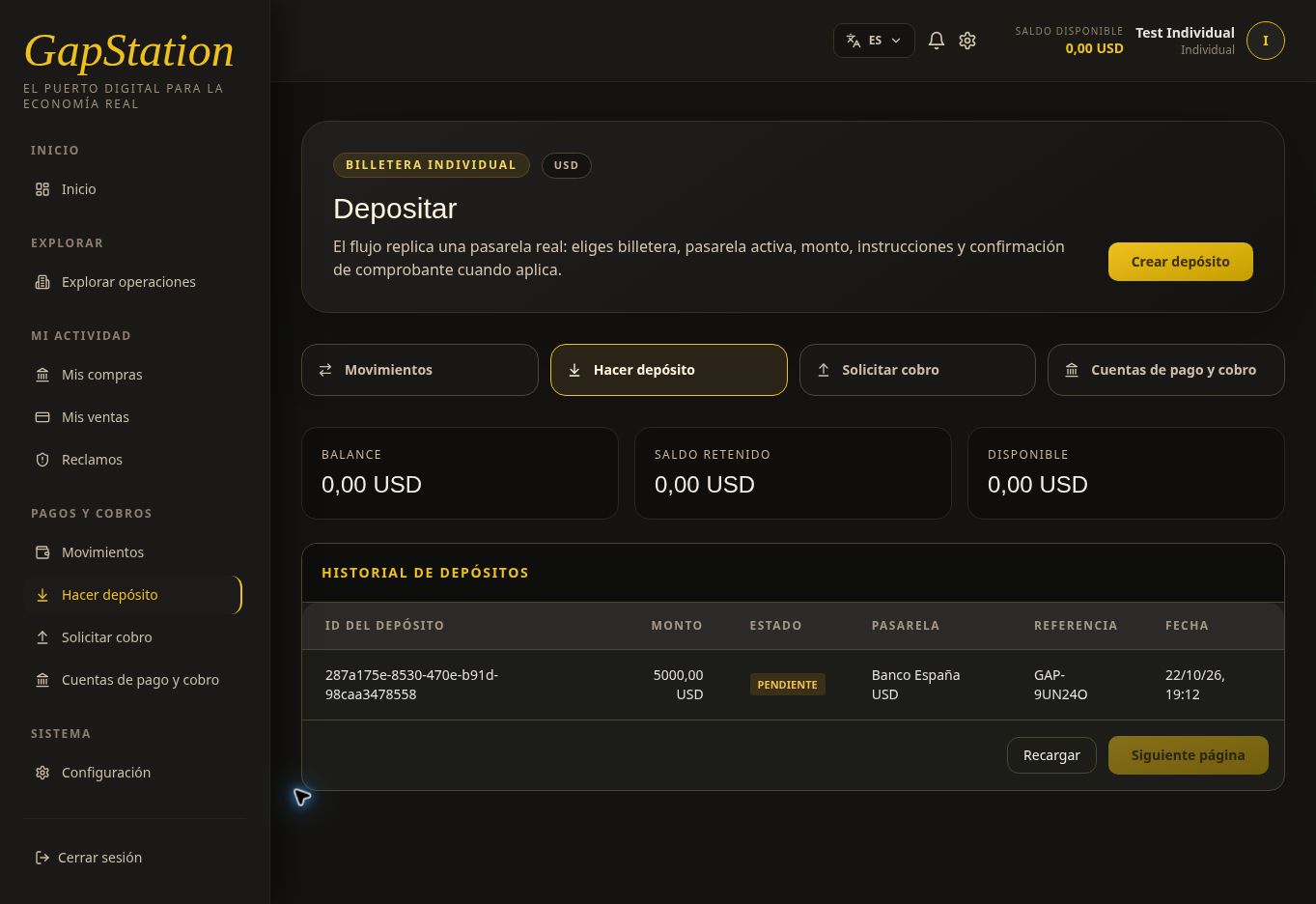
Check the amount, reference, and selected file. Select Confirm deposit. This example entered PENDING status and appears in the history with its amount and reference.
Confirming is not the same as approval. At this point the available balance is still USD 0.00: the deposit is waiting for administrative review.
6. Check approval and credited balance
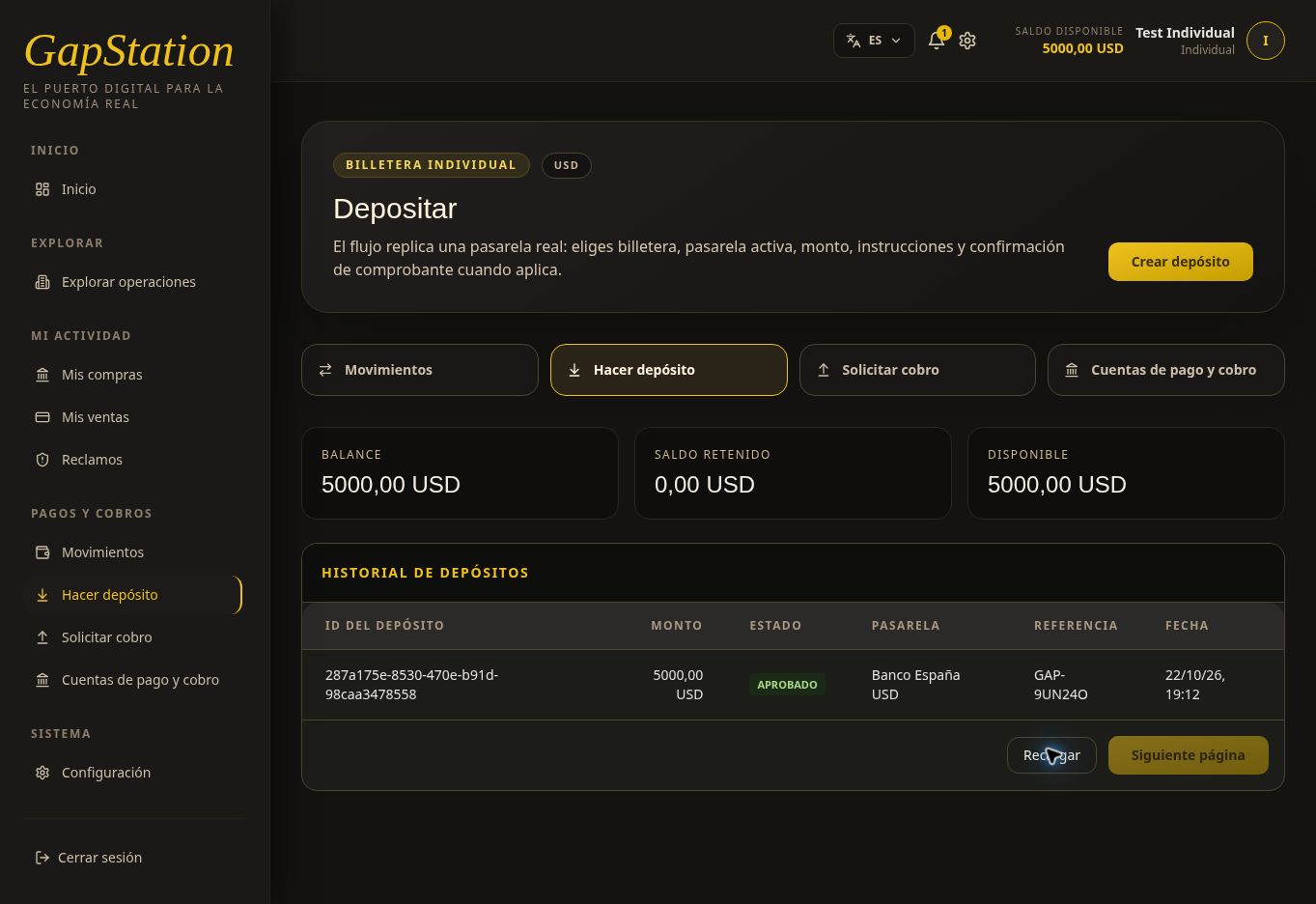
After the team approves the deposit, check its status in the history. In this example, reference GAP-9UN24O changed from PENDING to APPROVED.
Select Refresh to update the history. If the status changed but the balance still shows the old amount, reload the full page. In this test the page had to be reloaded for the balances to update as well.
After approval, the balance and available amount show USD 5,000.00, with USD 0.00 held.
Transactions also shows a completed Funds received entry for +USD 5,000.00.
7. Check the notification bell
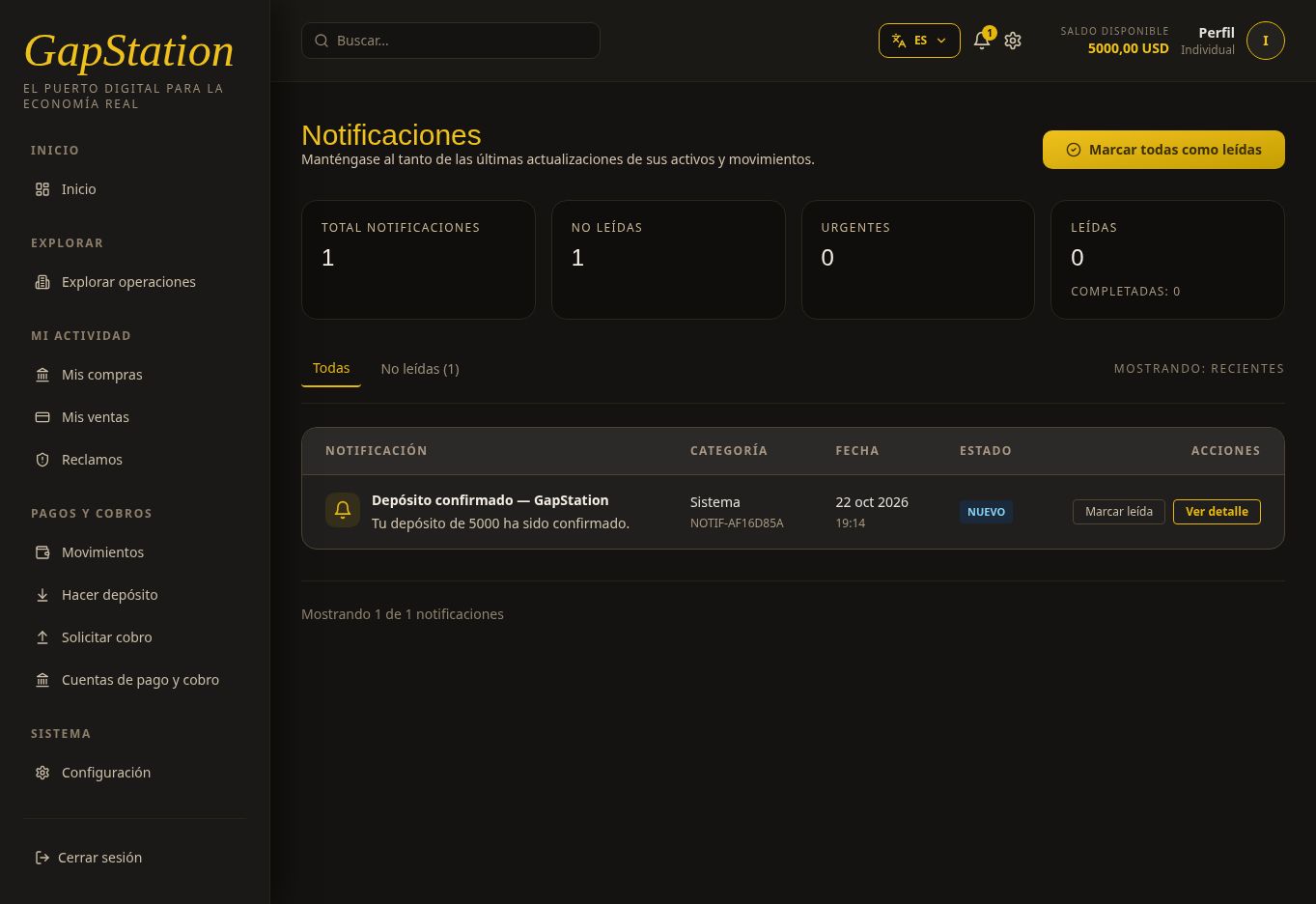
When the deposit is approved, you receive a notification in the bell in the top bar. The number indicates unread alerts. Select the bell to open Notifications.
This demonstration received “Deposit confirmed — GapStation” with the message “Your 5000 deposit has been confirmed.” Select View details to open the alert or Mark as read after reviewing it.
The example completed the flow: DRAFT → PENDING → APPROVED. The screenshots and receipt are for testing only.
If you need help
Give support the reference and status shown in the history. Do not post real receipts or personal banking details in public channels.
03. Browse and review opportunities
Before buying, find an opportunity and review its products, terms, and availability. This guide uses Leche en polvo in the test environment.
1. Find the opportunity
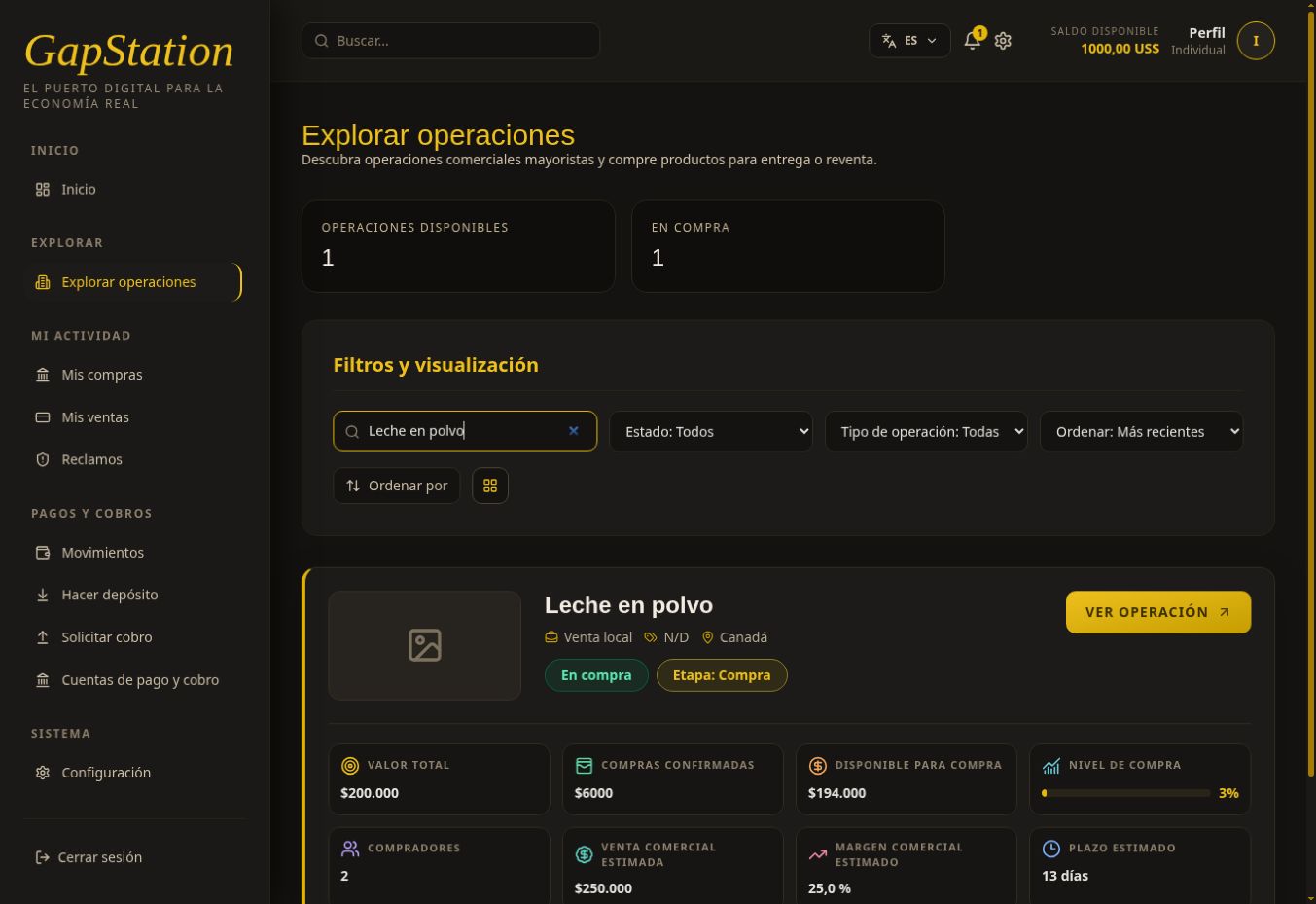
Open Explore opportunities and enter Leche en polvo in Search opportunities. You can filter by status or type, sort the results, and change the view.
The card summarizes total value, confirmed purchases, availability, number of buyers, and estimated time frame. Opportunity totals apply to all buyers; they are not your personal balance. This marketplace screenshot was taken after our test purchase, so its figures differ from earlier screenshots of the details.
2. Select View opportunity
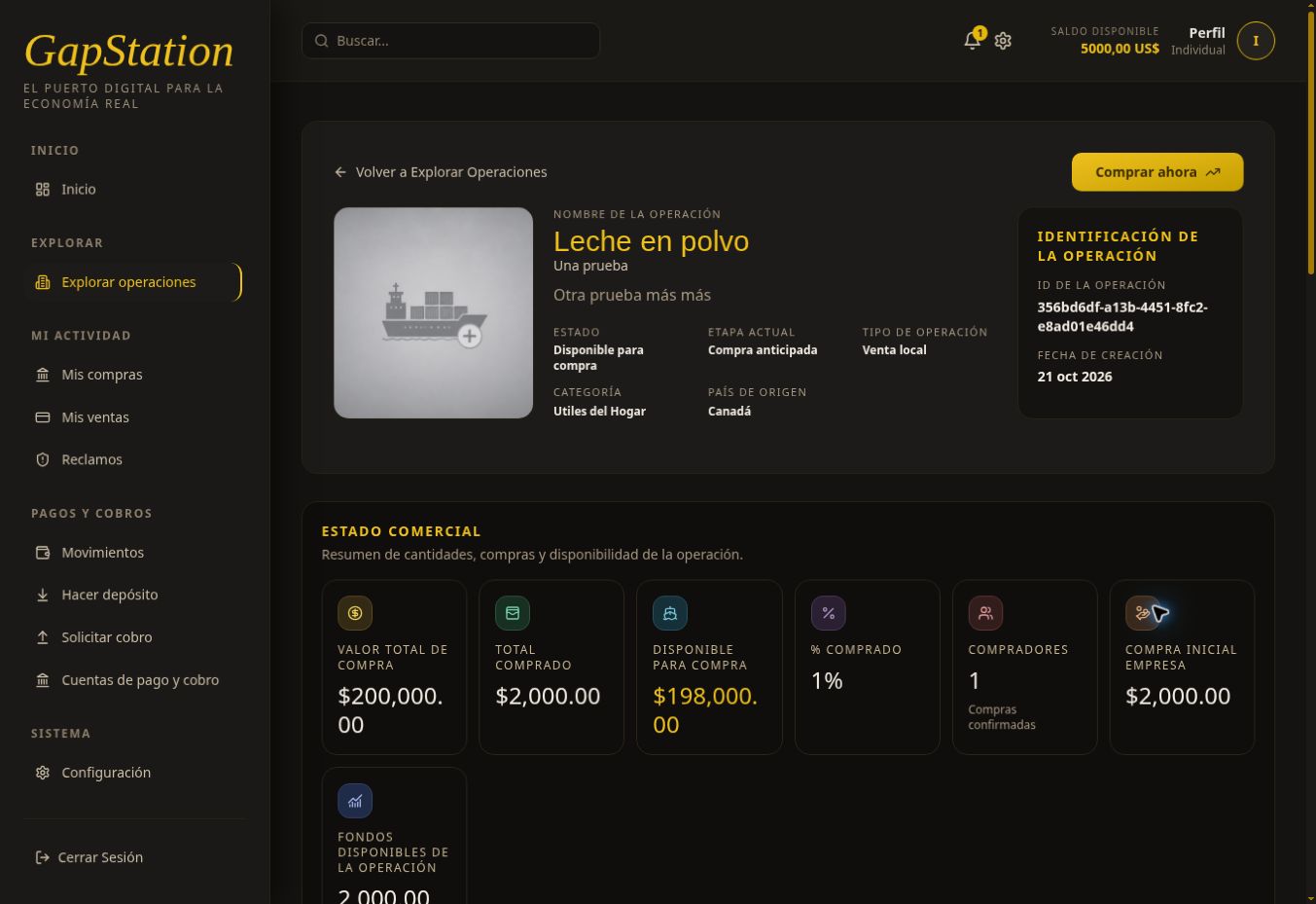
Check the name, status, current stage, type, category, and country. The opportunity must allow purchases to continue.
3. Review the terms
- Commercial status: total value, amount purchased, and availability.
- Opportunity information: responsible company, origin, destination, and estimated dates.
- Description and participating companies: what is proposed and who is involved.
- Commercial details: estimated prices, margin, and time frame.
- Products: what is actually being purchased.
4. Open View products
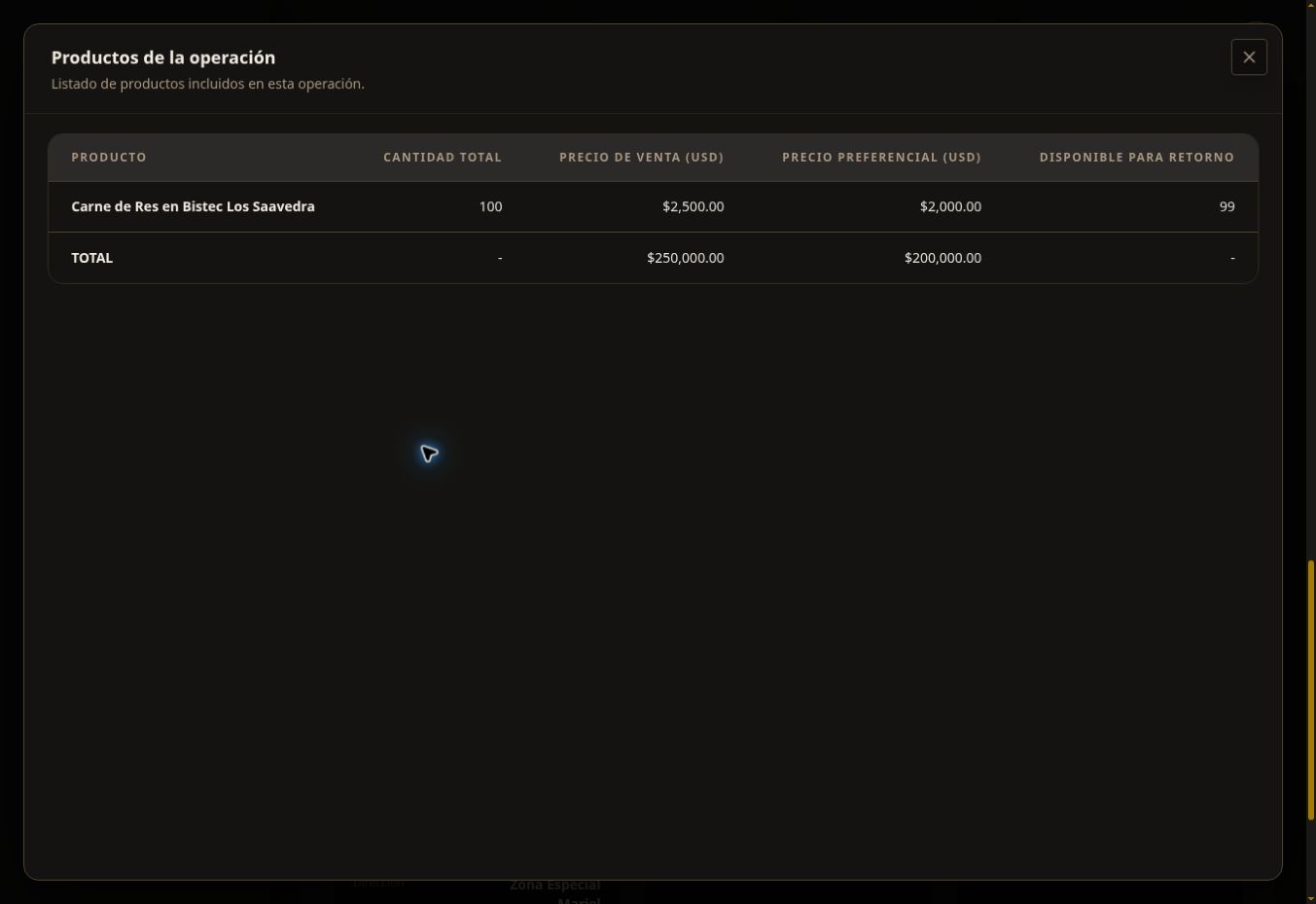
Under Opportunity products, select View products to check each product name, quantity, and price.
Test example detail: although the opportunity is named Leche en polvo, its only test product is Carne de Res en Bistec Los Saavedra. The purchase price is USD 2,000 per unit and the published commercial value is USD 2,500. Always check the products; the opportunity name does not replace the product details.
5. Continue to the purchase
Close the product list and select Buy now. See How to buy in an opportunity to choose a purchase mode, calculate a budget, and confirm. You need available funds first: Make a deposit.
Estimated margins, commercial values, and dates do not guarantee an outcome or payment. All screenshots are from the test environment.
04. Buy in an opportunity
Learn how to select products, use the automatic budget, and confirm a purchase. This example uses Leche en polvo, the Buy for Resale mode, and a test starting balance of USD 5,000.
First, review how to find and inspect an opportunity. If you need funds, follow the deposit guide and wait for the balance to be credited.
1. Select Buy now and review the summary
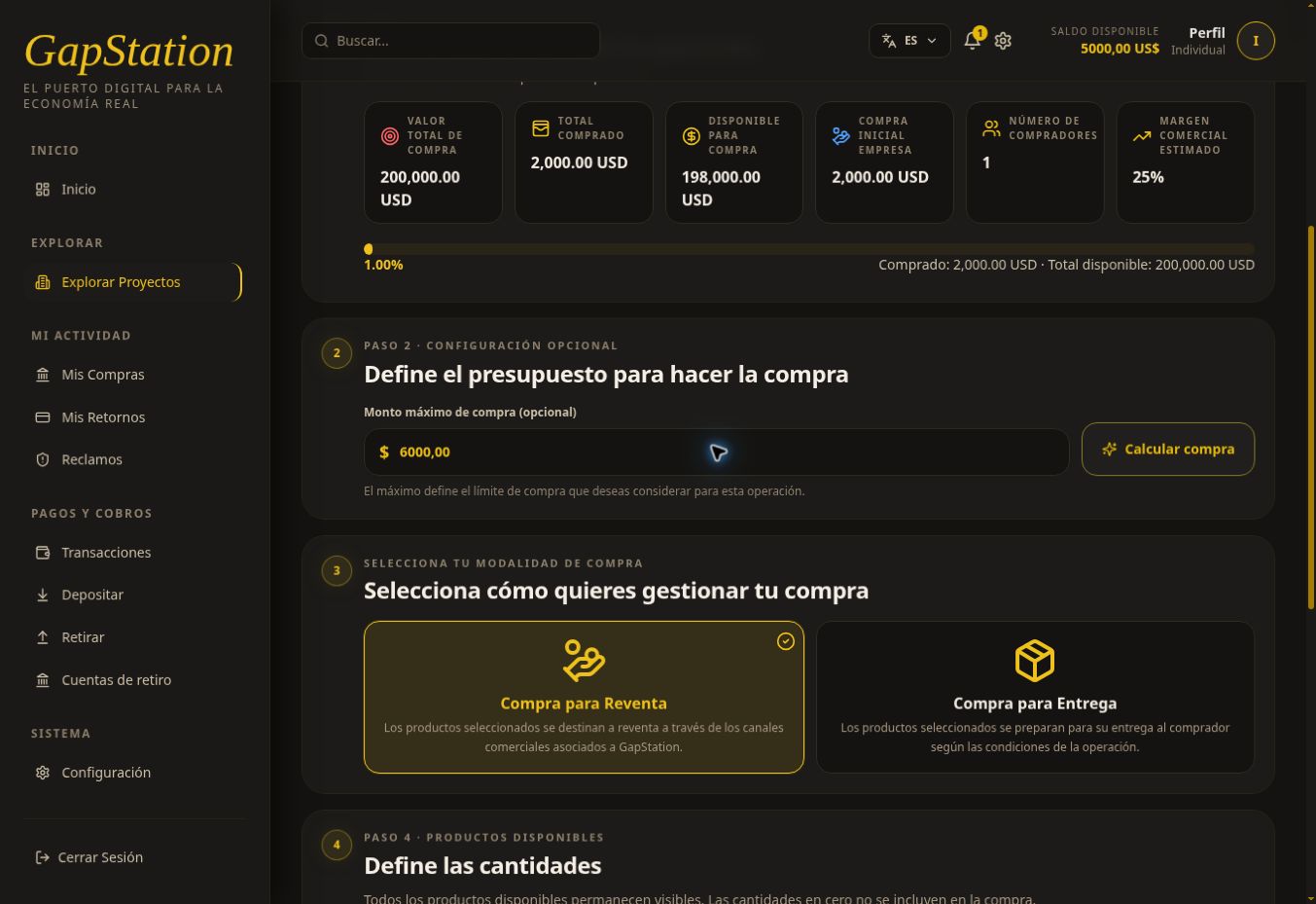
From the opportunity details, select Buy now. The page is titled Buy in the opportunity; its URL may contain /invest. Check the name, responsible company, availability, estimated margin, and dates.
Opportunity-wide availability is not your balance. An opportunity showing USD 198,000 available for purchase does not mean your account has that amount.
2. Set a purchase budget
This step is optional. Enter your limit in Maximum purchase amount and select Calculate purchase.
What does it do? The system proposes quantities of available products to maximize estimated commercial profit without exceeding the budget. Always review the selection and summary. With multiple products, the proposal may distribute the budget across them.
- Budget: the maximum amount you want to spend.
- Available balance: the money your wallet lets you use.
- Calculated total: the cost of the selected quantities.
The total may be lower than the budget because of prices, quantities, and availability. Calculation does not add funds or confirm the purchase. You can also set or adjust quantities manually; review the total after each change. Quantities set to zero are excluded.
3. Choose the purchase mode
- Buy for Resale: products are intended for resale through GapStation’s associated sales channels. This is the mode used in the demonstration.
- Buy for Delivery: products are prepared for delivery to the buyer under the opportunity terms.
Choose the mode that matches your goal. This test completed the resale flow; no second delivery purchase was made.
4. Insufficient balance example: USD 6,000 budget
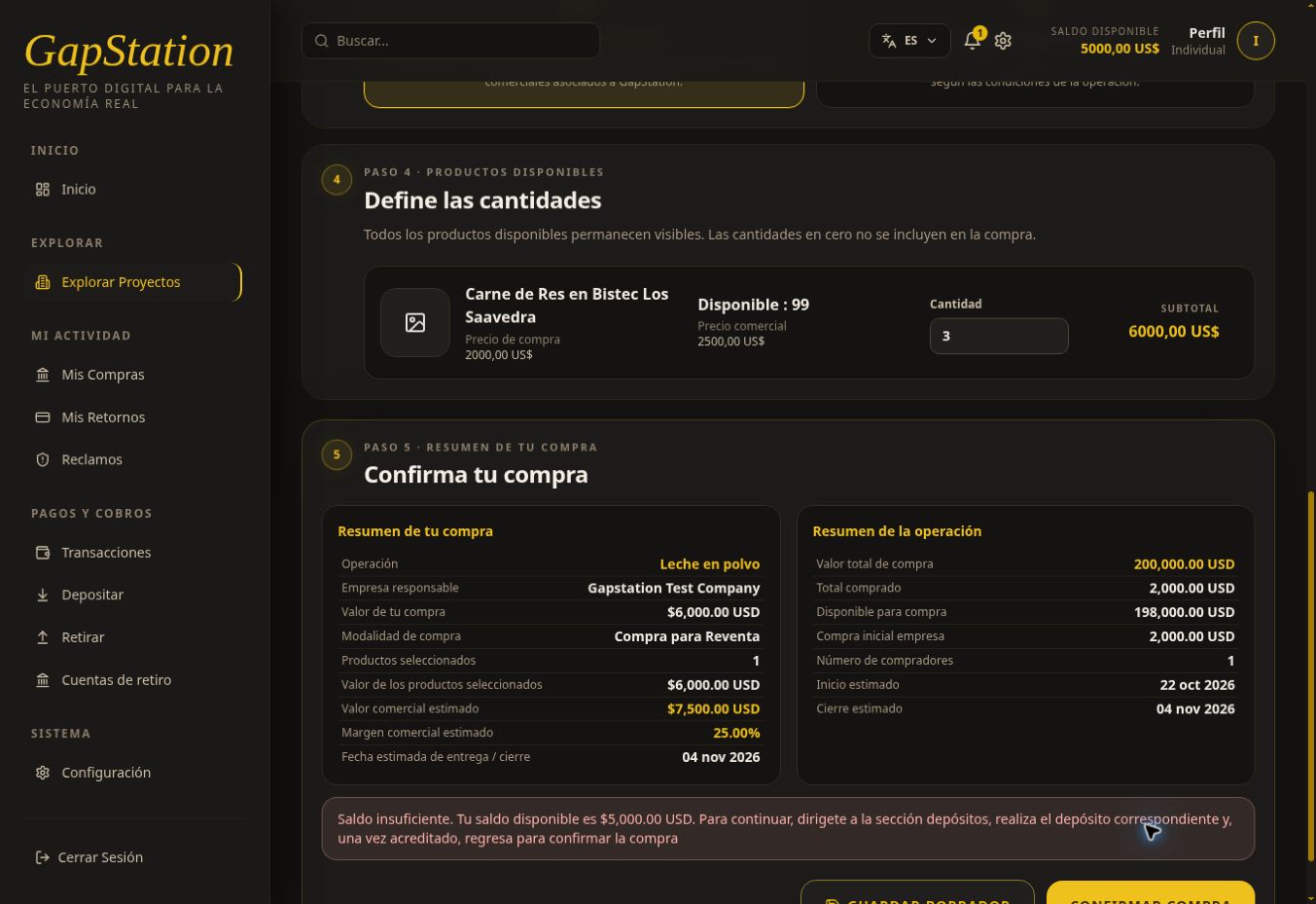
With USD 5,000 available, we entered USD 6,000 and selected Calculate purchase. The system selected 3 units × USD 2,000 = USD 6,000. The budget was respected, but the total exceeded the account balance.
Selecting CONFIRM PURCHASE showed an Insufficient balance error, stating that USD 5,000 was available and a deposit was needed. This attempt did not create a confirmed purchase.
To resolve it, lower the budget or quantities, or make a deposit using this guide. If you deposit, wait for approval and check the new balance before confirming again.
5. Adjust the purchase to the USD 5,000 balance
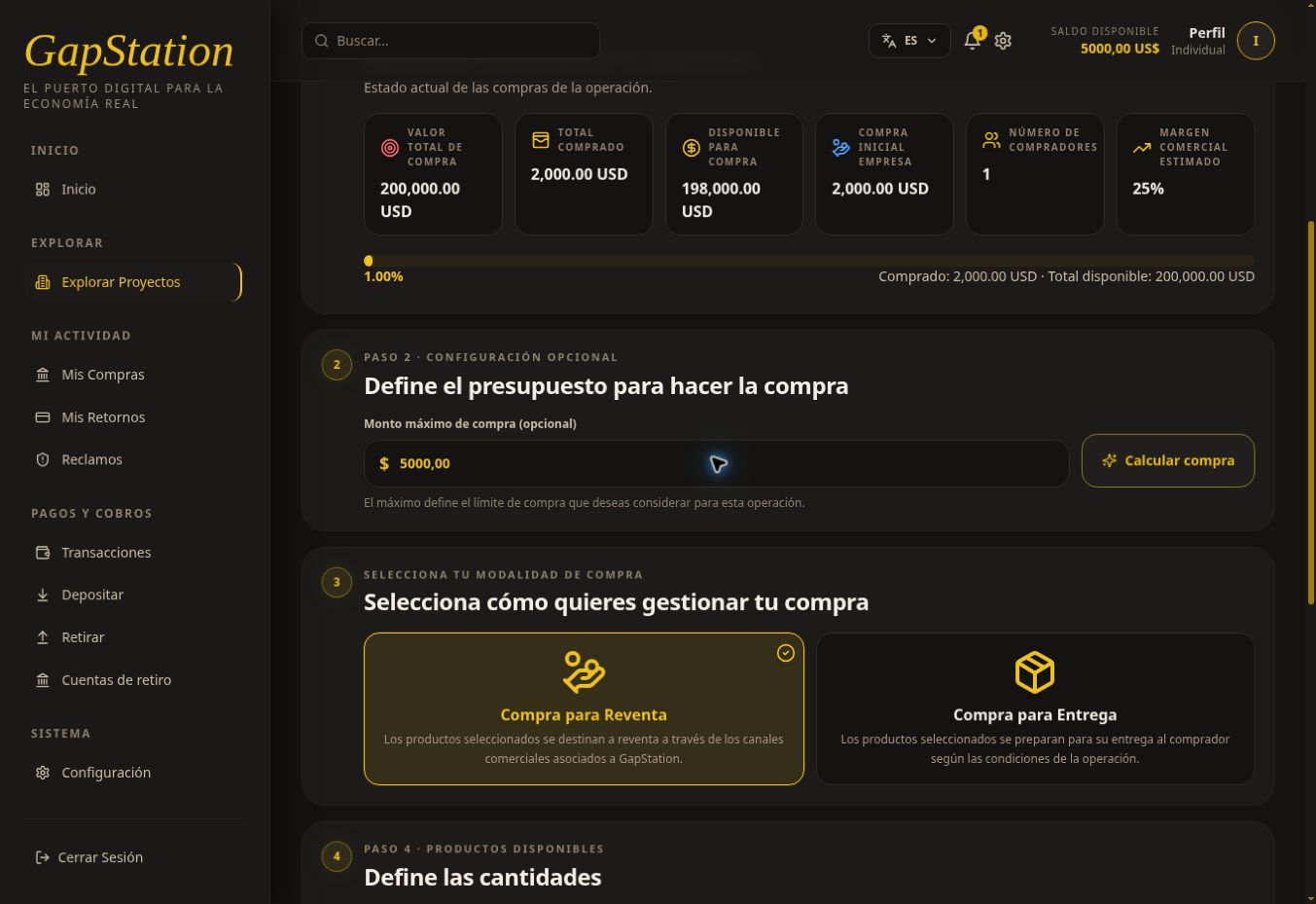
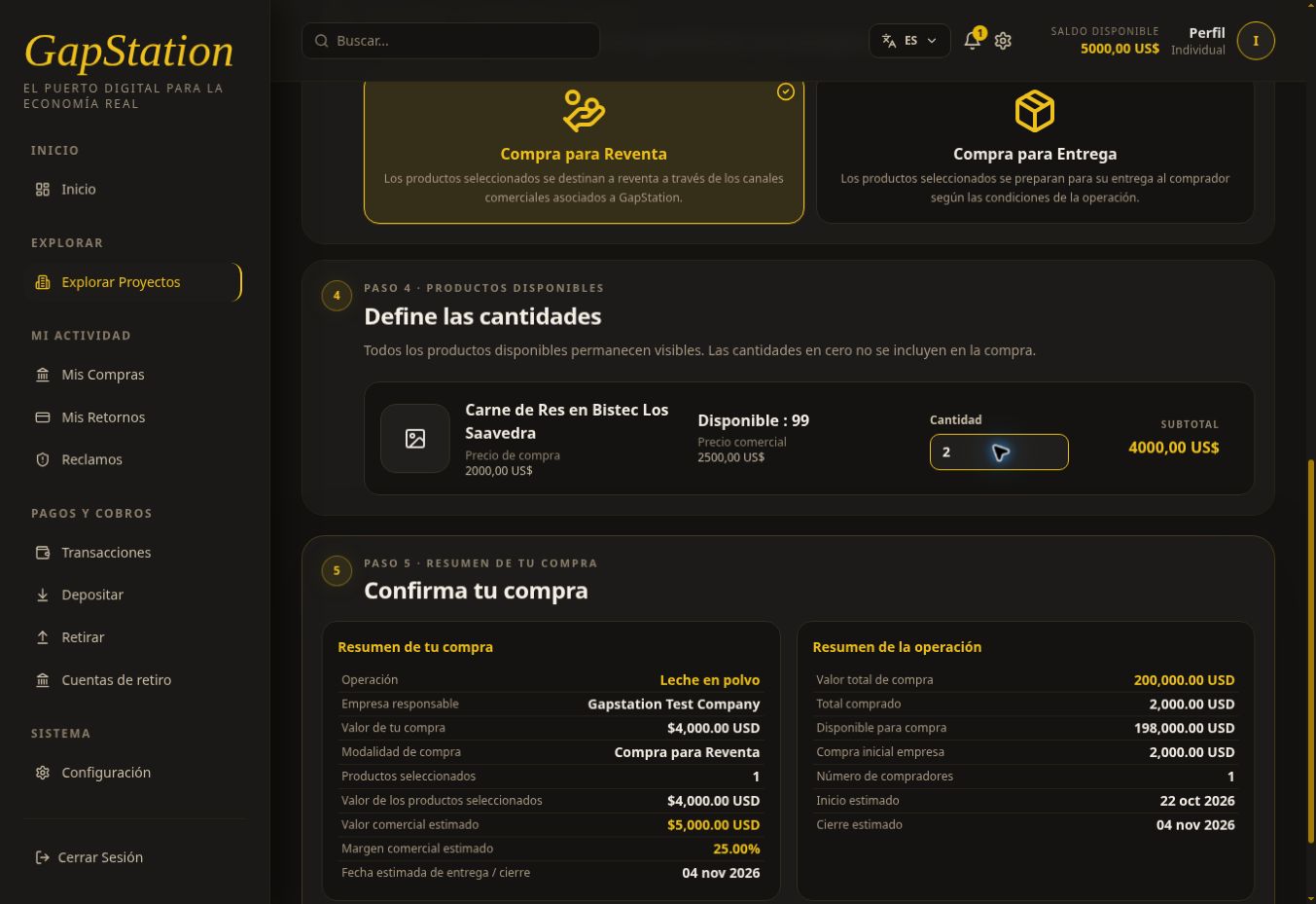
We changed the budget to USD 5,000 and selected Calculate purchase again.
The test product costs USD 2,000 per unit. The calculation selected 2 units for USD 4,000. A third unit would cost USD 6,000 and exceed the limit, leaving USD 1,000 unused.
| Item | Failed attempt | Adjusted purchase |
|---|---|---|
| Starting balance | USD 5,000 | USD 5,000 |
| Budget | USD 6,000 | USD 5,000 |
| Quantity selected | 3 units | 2 units |
| Purchase total | USD 6,000 | USD 4,000 |
| Result | Insufficient balance | Confirmed |
Important: The opportunity is called Leche en polvo, but its only registered product is Carne de Res en Bistec Los Saavedra. These are test data. This demonstration checks the calculation for one product; it does not test combinations of multiple products.
6. Review quantities and the summary before confirming
Under Define quantities, check the products and subtotals. Under Confirm your purchase, review the opportunity, company, mode, purchase value, commercial value, and estimated date.
This test summary showed a USD 4,000 purchase, estimated commercial value of USD 5,000, and estimated margin of 25%. The estimated difference is USD 1,000; it is not a payment received and is not added to your balance immediately.
SAVE DRAFT keeps a purchase without confirming it. To complete the purchase, select CONFIRM PURCHASE after reviewing everything. Do not click repeatedly while it is processing.
7. Check the confirmed purchase
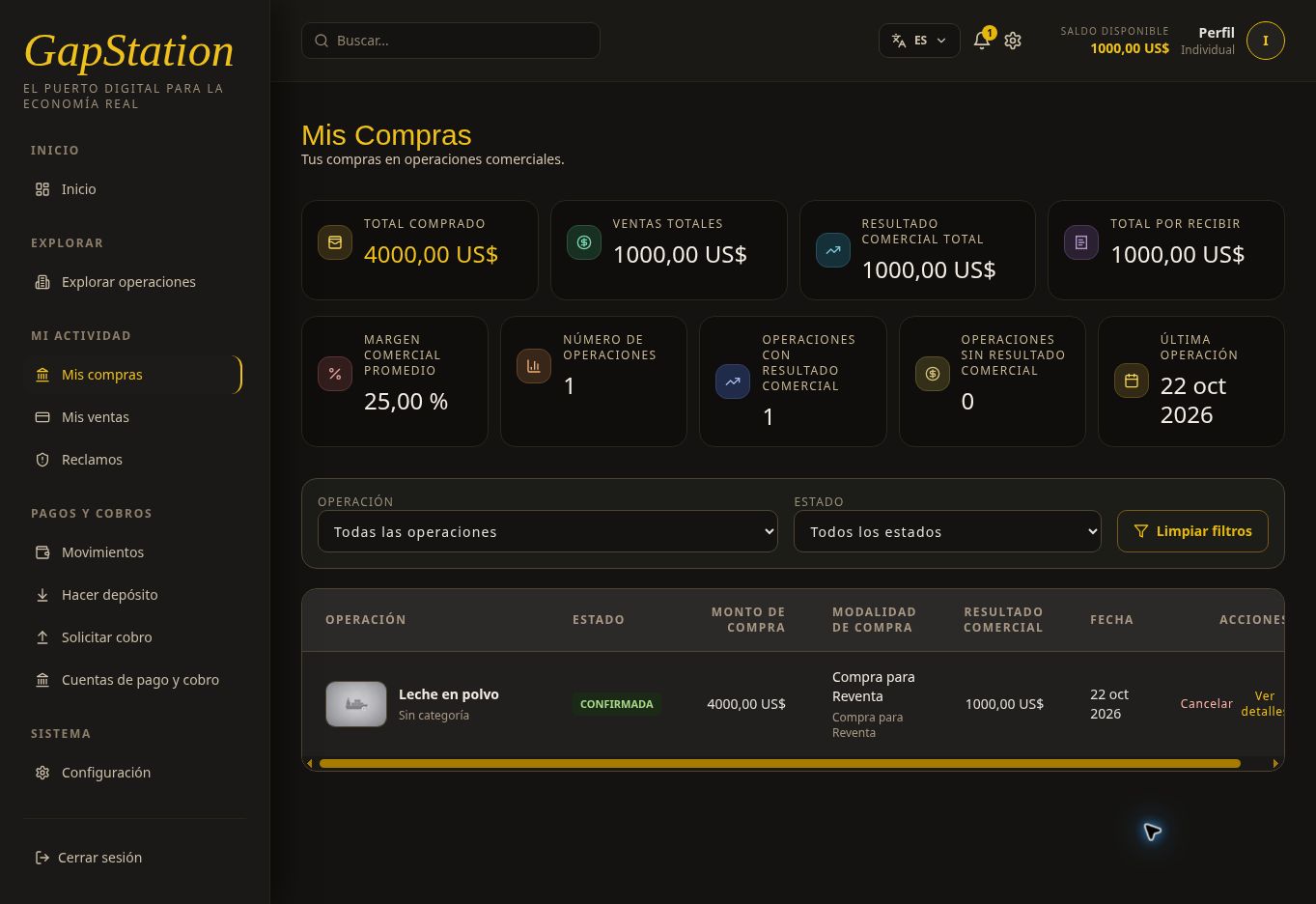
After confirmation, the app opened My Purchases. Leche en polvo appeared as CONFIRMED for USD 4,000 in Buy for Resale mode. The available balance decreased from USD 5,000 to USD 1,000.
8. Open View details
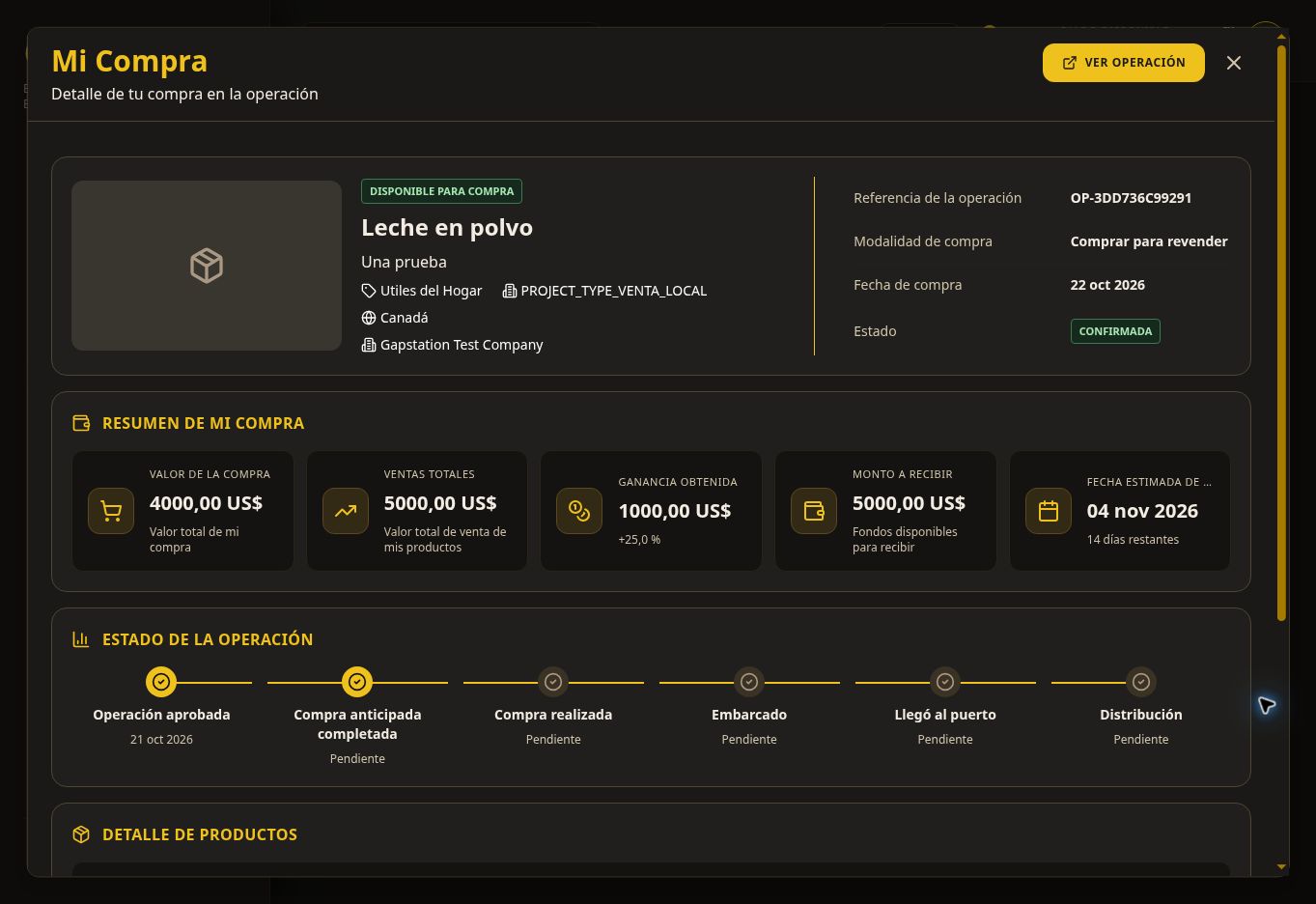
In the purchase row, select View details. The My Purchase popup shows the opportunity reference, mode, date, status, summary, tracking, and products. This example showed two units with RESERVED status.
How to interpret the amounts: Some labels in the test environment say “Profit earned,” “Total sales,” or “Amount to receive” even while products are still reserved. Do not treat those labels as proof of a completed sale or paid funds. Check the sales status and actual wallet transactions.
This full flow used simulated funds in the test environment. Prices, statuses, availability, and dates may change.
05. View my purchases
Under My activity → My purchases, you can review and track your purchases in business opportunities.
1. Review and filter the list
Filter by opportunity or status, and use Clear filters to reset the search. The table shows the opportunity, status, amount, mode, commercial result, and date.
In this example, Leche en polvo is CONFIRMED for USD 4,000 in Buy for Resale mode. After starting with USD 5,000, USD 1,000 remains available.
2. Select View details
The My Purchase popup shows the opportunity reference, mode, purchase date and status, summary, tracking, and product details.
The example purchase has two units in RESERVED status. Check the statuses to distinguish a confirmed purchase from delivery or resale progress.
3. Interpret the amounts
The available balance in the top bar belongs to your wallet. Figures for the commercial result, sales, or amount to receive belong to the purchase and do not automatically mean money has been paid. In this test environment, some labels say “Profit earned” while products remain reserved. Check sales and actual transactions before considering a payment complete.
If a purchase is missing
Clear the filters and check that you are using the right account. To make a new purchase, see Buy in an opportunity. If you need funds, use the deposit guide.
The Cancel action is different from opening the details; do not use it just to close the popup. Screenshots are from the test environment.
06. View my sales and deliveries
My Sales lets you review returns or settlements linked to your purchases: product sales for resale and, when applicable, product deliveries.
1. Review the confirmed return
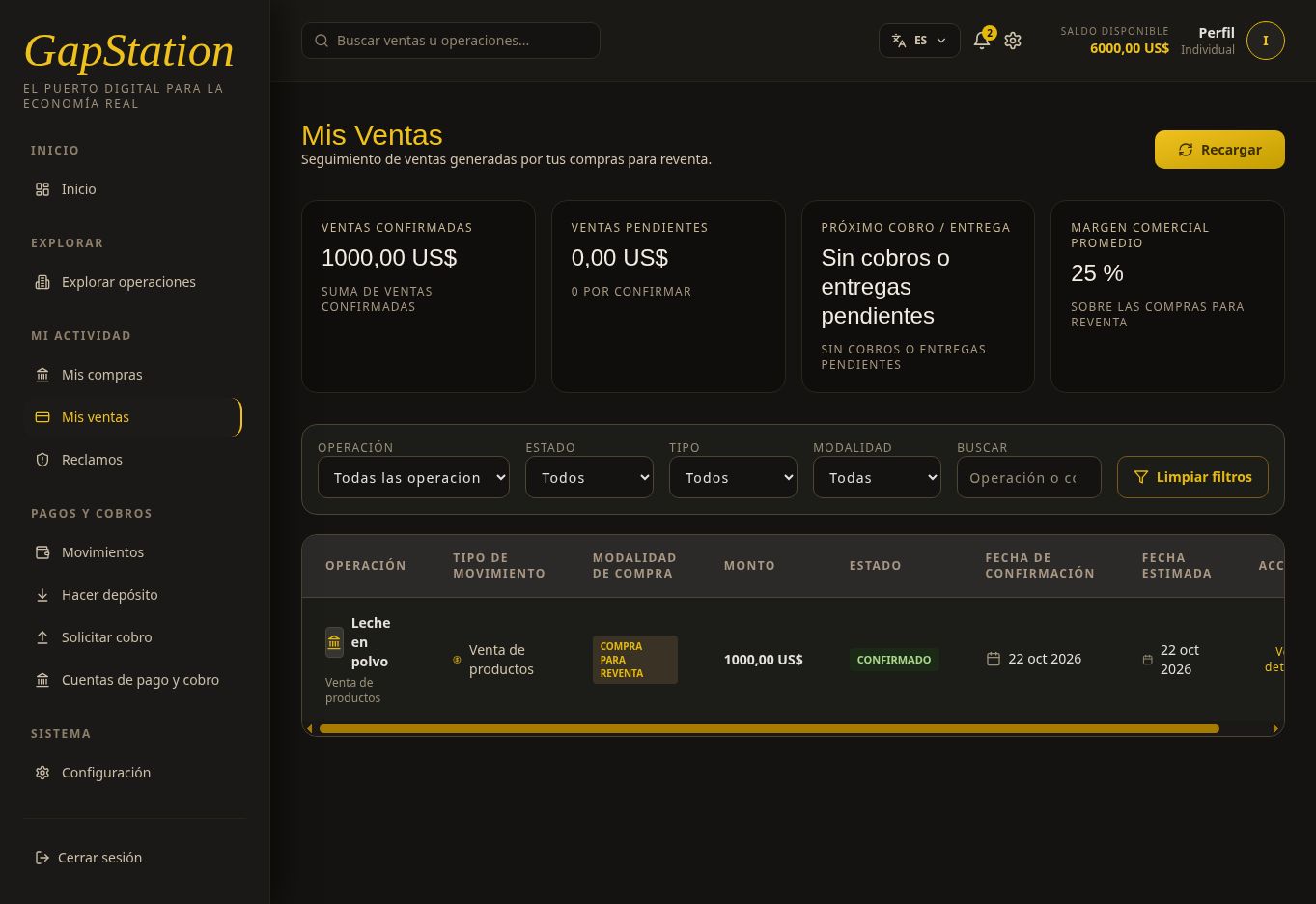
Open My activity → My sales. Filter by opportunity, status, type, or mode. You can search and use Clear filters or Refresh.
The Leche en polvo example has a Confirmed entry of type Product sale in Buy for Resale mode. The row and confirmed-sales card show USD 1,000, corresponding to the example’s commercial profit. That amount alone does not represent all the money returned to the wallet.
2. Open View details
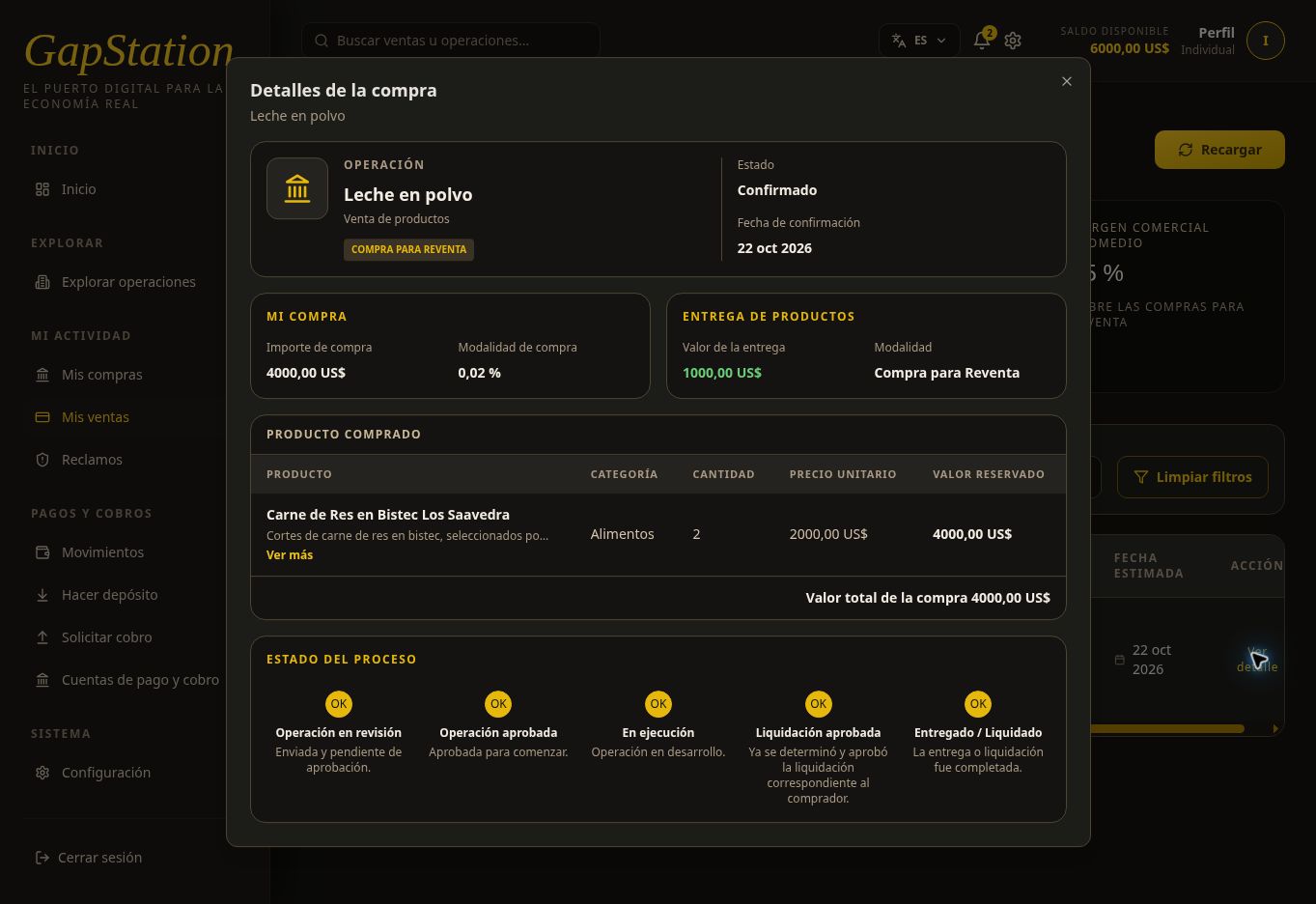
In the row, select View details. The popup is titled Purchase details and shows the opportunity, status, confirmation date, purchase amount, products, and process progress.
It shows a USD 4,000 purchase, two units, and a process through Delivered / Settled. Some labels in this test view say “Product delivery” or “Delivery value” even for a resale purchase. Always check the mode and compare amounts with Transactions.
3. How the balance changed from USD 1,000 to USD 6,000
| Step | Amount |
|---|---|
| Balance remaining after purchase | USD 1,000 |
| Purchase amount returned | USD 4,000 |
| Profit in the example | USD 1,000 |
| Total return credited | USD 5,000 |
| Balance after settlement | USD 1,000 + 5,000 = USD 6,000 |
The USD 6,000 includes the money you already had; it is not USD 6,000 of profit. Transactions shows a completed Return entry of +USD 5,000. In this case, the balance confirms the return was credited; an estimated figure before settlement would not.
4. Withdraw to a destination account
The credited balance stays in your wallet. To request a withdrawal, first register a payment and withdrawal account, then use Request withdrawal. A confirmed return and a withdrawal request are separate processes.
These screenshots are from the test environment and were taken before the later USD 1,000 withdrawal request.
07. Review account transactions
Under Payments and withdrawals → Transactions, you can track wallet inflows and outflows and see how your balance is calculated.
1. Review your balance, held funds, and available amount
- Balance: total amount shown in the wallet.
- Held balance: reserved funds you cannot use yet.
- Available: amount you can use; in this example, balance minus held funds.
2. Read the example history
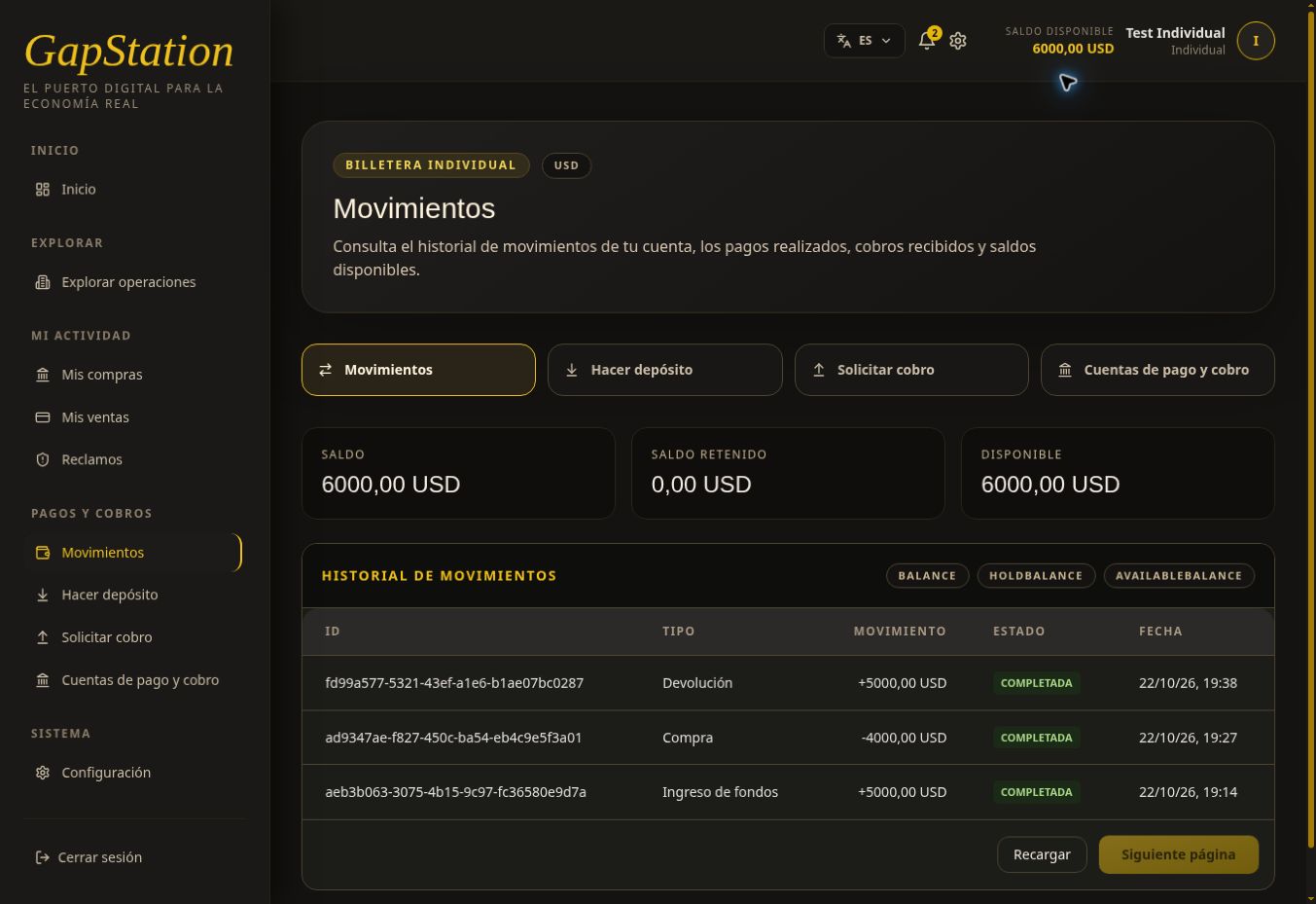
The history is sorted with the newest transaction first. To reconstruct the flow, read these three entries from oldest to newest:
| Type shown | Transaction | What happened | Resulting balance |
|---|---|---|---|
| Funds received | +USD 5,000 | The approved deposit was credited. | USD 5,000 |
| Purchase | −USD 4,000 | Purchase of two units in Leche en polvo was confirmed. | USD 1,000 |
| Return | +USD 5,000 | The return was credited: USD 4,000 purchase amount plus USD 1,000 profit. | USD 6,000 |
All three records show COMPLETED. A plus sign means money entered the wallet; a minus sign means money left it. Here, the Return label refers to the settlement return; it does not mean the purchase was cancelled.
Calculation: 5,000 − 4,000 + 5,000 = USD 6,000. Keep the transaction ID, type, status, and date if you need to ask support about it.
3. What happens when you request a withdrawal
After this screenshot, a USD 1,000 withdrawal was requested. While it was pending, the following was verified:
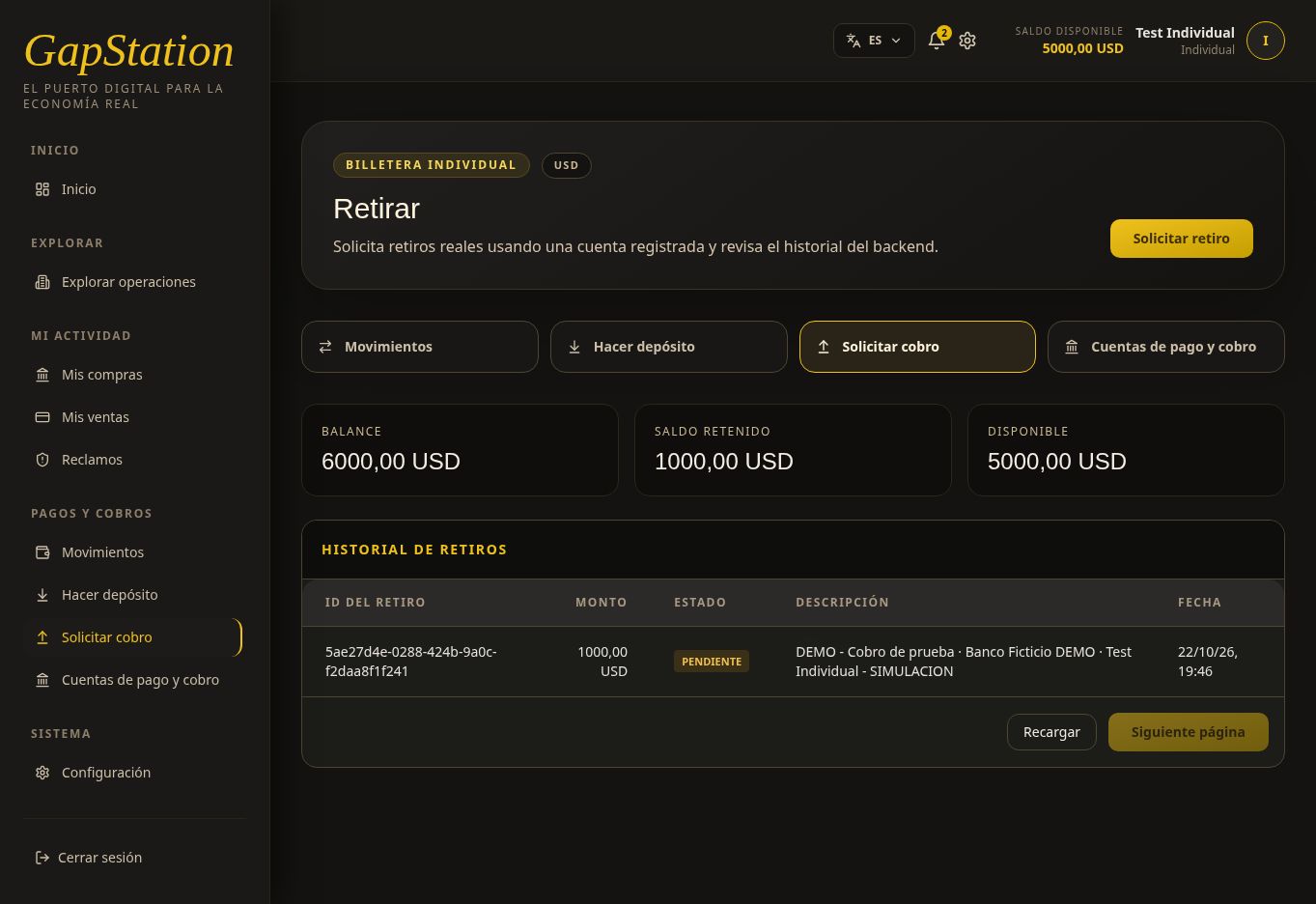
| Balance | Held | Available |
|---|---|---|
| USD 6,000 | USD 1,000 | USD 5,000 |
Held funds do not mean the payment has been completed. Check its status under Request withdrawal. The approved result is shown in the next step.
4. Check the approved withdrawal
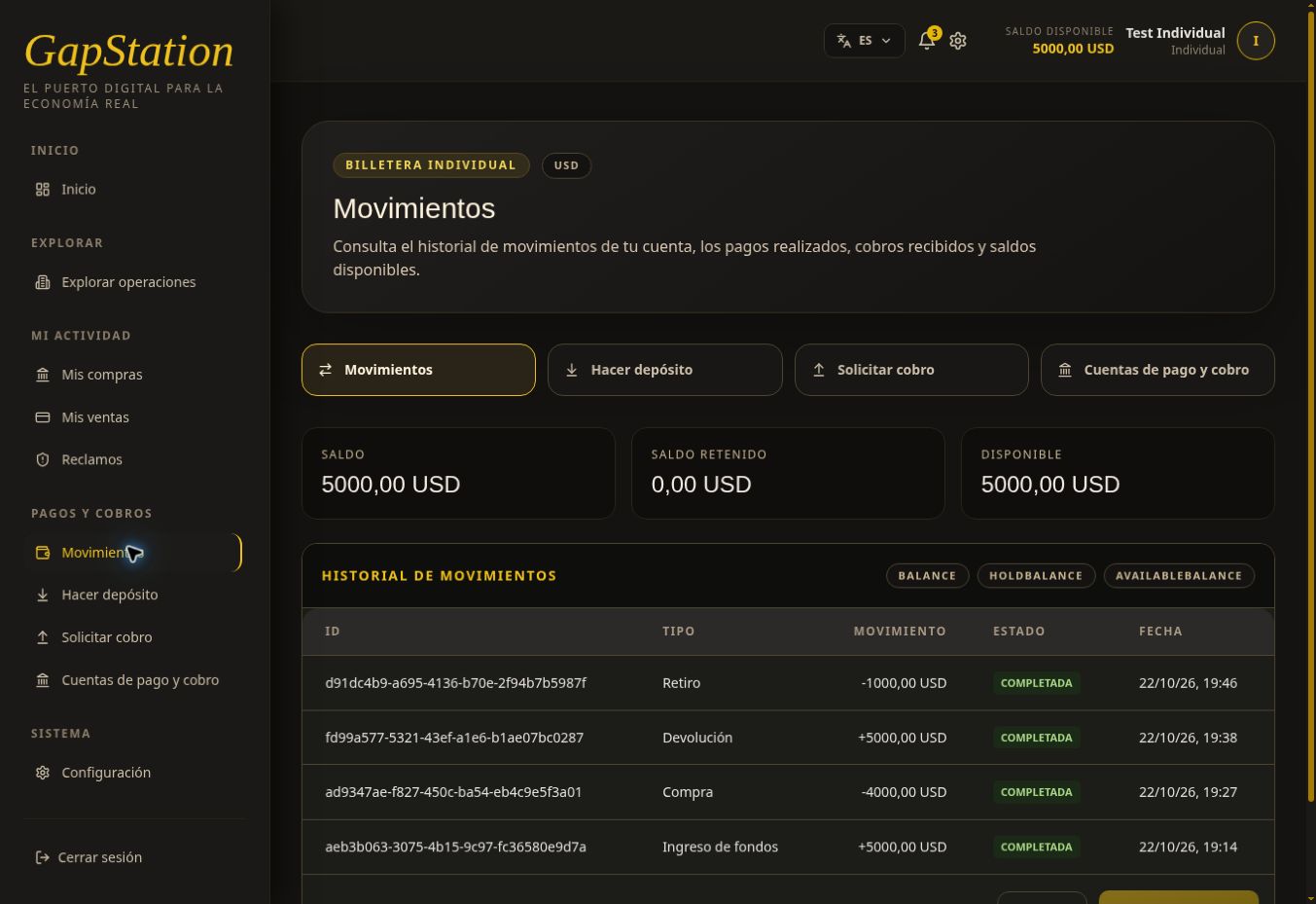
After approval and a page refresh, a new transaction appears: Withdrawal −USD 1,000, COMPLETED.
| Full flow | Amount | Resulting balance |
|---|---|---|
| Funds received | +USD 5,000 | USD 5,000 |
| Purchase | −USD 4,000 | USD 1,000 |
| Return / settlement | +USD 5,000 | USD 6,000 |
| Withdrawal | −USD 1,000 | USD 5,000 |
Final calculation: 5,000 − 4,000 + 5,000 − 1,000 = USD 5,000. The balance is USD 5,000, held funds are USD 0, and available funds are USD 5,000. The USD 1,000 reserve disappears when the withdrawal is posted; it is not a second deduction.
The bell also receives the alert Withdrawal confirmed — GapStation. See Request a withdrawal for the screenshot and its status change from PENDING to APPROVED.
5. Refresh the information
Select Refresh to check the history and use Next page if available. If the balance still shows the old amount after a change, reload the full page and wait for it to finish loading. Check the specific deposit or withdrawal history if a transaction is missing.
All amounts and accounts in this demonstration belong to the test environment.
08. Register payment and withdrawal accounts
To request a withdrawal, you need a destination account. Under Payments and withdrawals → Payment and withdrawal accounts, open the Withdrawal accounts screen.
1. Open Register account
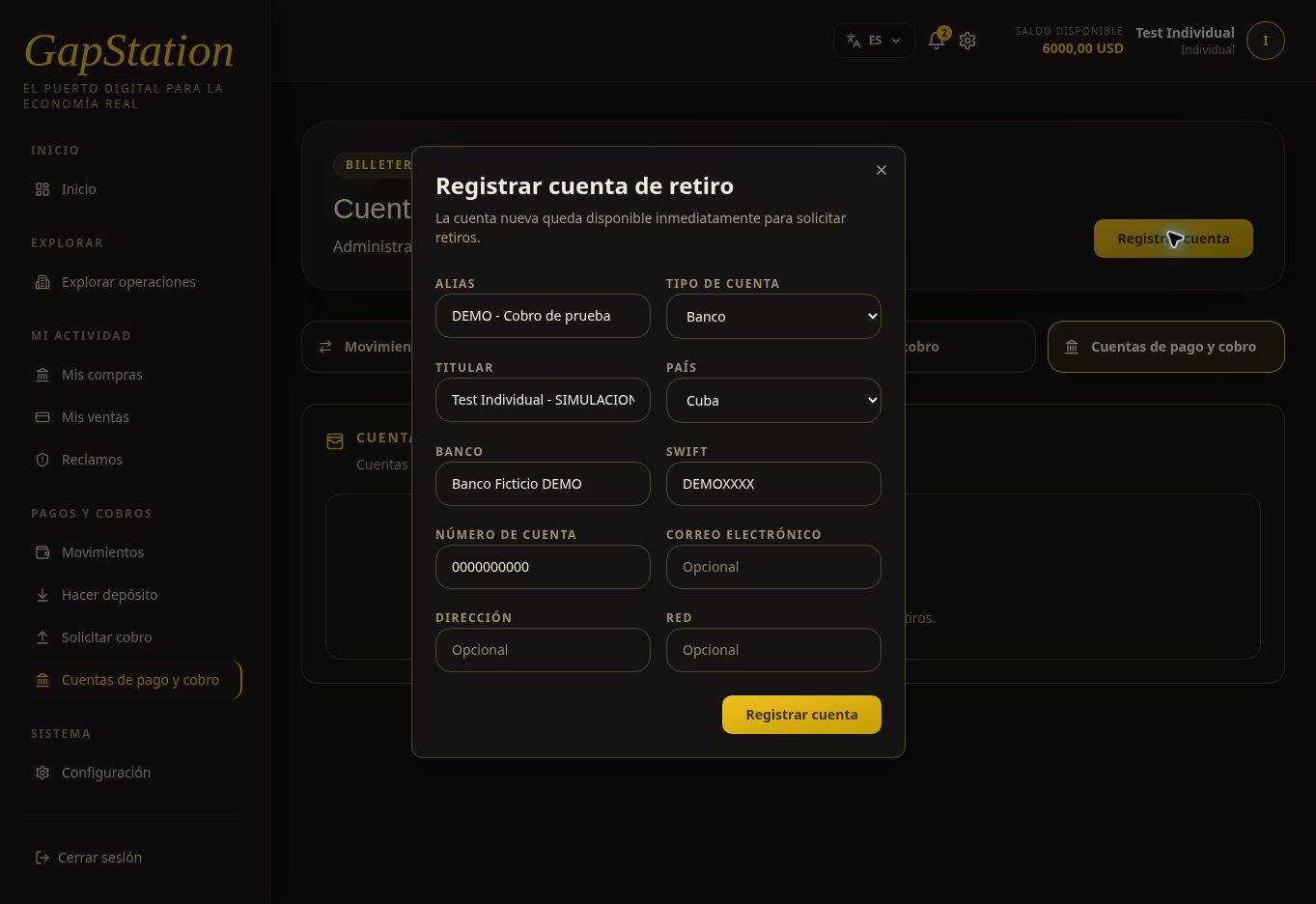
Select Register account. The form says the new account is available immediately for withdrawal requests.
2. Enter the details
- Alias: a name to identify the account.
- Account type: Bank, Crypto, PayPal, or Other / unspecified.
- Account holder and country: details of the destination account.
- Complete the relevant fields, such as bank, SWIFT, account number, email, address, or network.
Carefully verify the information before selecting Register account.
3. Example of a registered account
A fictitious account was created to document this flow:
| Field | Test value |
|---|---|
| Alias | DEMO - Test withdrawal |
| Type | Bank |
| Account holder | Test Individual - SIMULATION |
| Country | Cuba |
| Bank | Fictitious Bank DEMO |
| SWIFT | DEMOXXXX |
| Account number | 0000000000 |
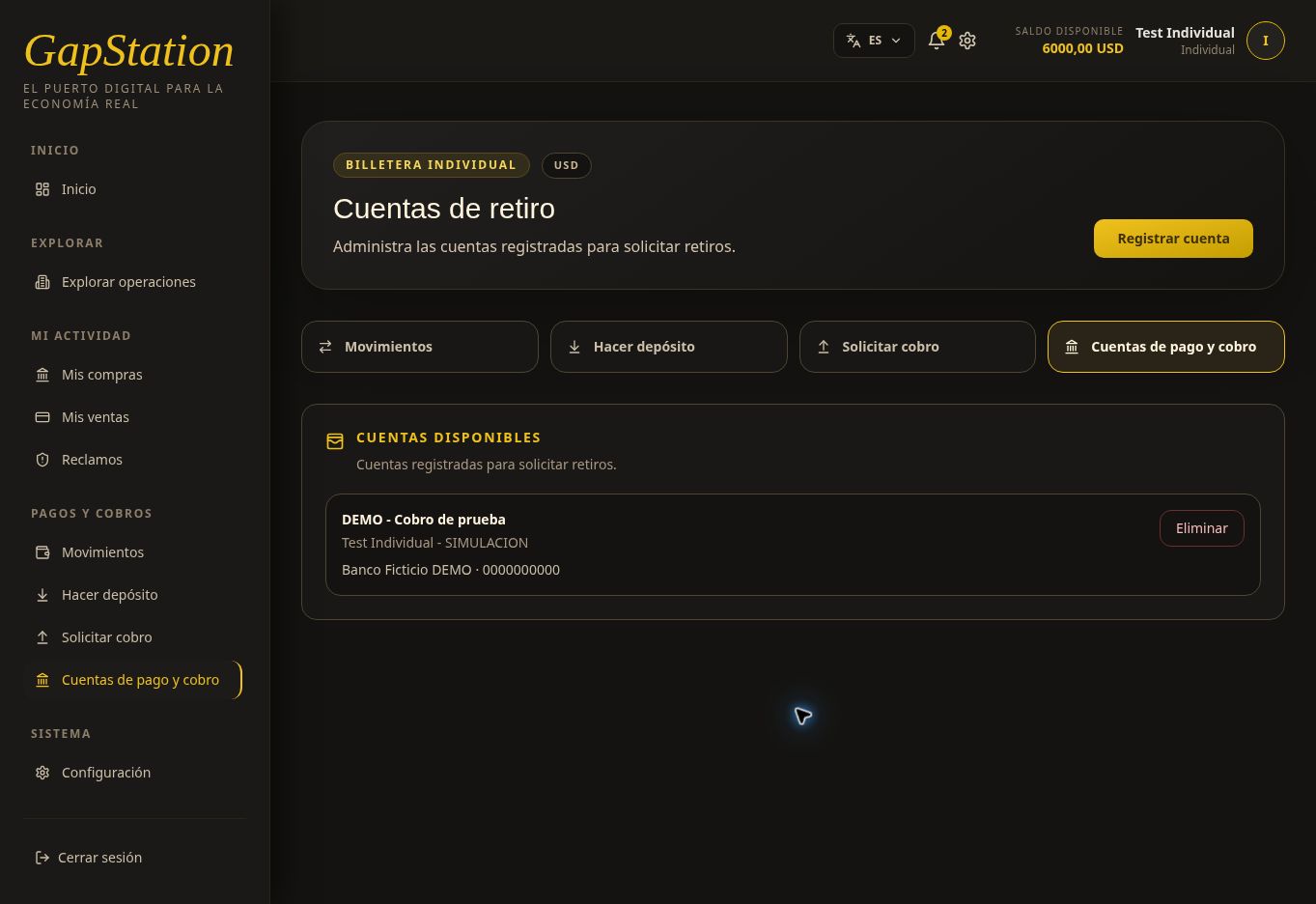
Do not use these values for real withdrawals. They are fictitious data from the test environment.
The account card shows the alias, account holder, bank, and account number. Delete is a management action; you do not need to select it to use the account.
4. Continue to Request withdrawal
The account now appears as a destination in the withdrawal request form. Registering an account does not move money or create a withdrawal automatically.
To add funds before buying, use Make deposit, which is a separate process. In real use, destination account details must be accurate and must not be published in the help documentation.
09. Request a withdrawal
Request withdrawal lets you request a transfer of wallet funds to a registered destination account. The screen is titled Withdraw and its main button says Request withdrawal.
1. Check the requirements
You need available funds and a registered payment and withdrawal account. In this test, the Leche en polvo return left USD 6,000 available and we used the fictitious account DEMO - Test withdrawal.
2. Submit the request
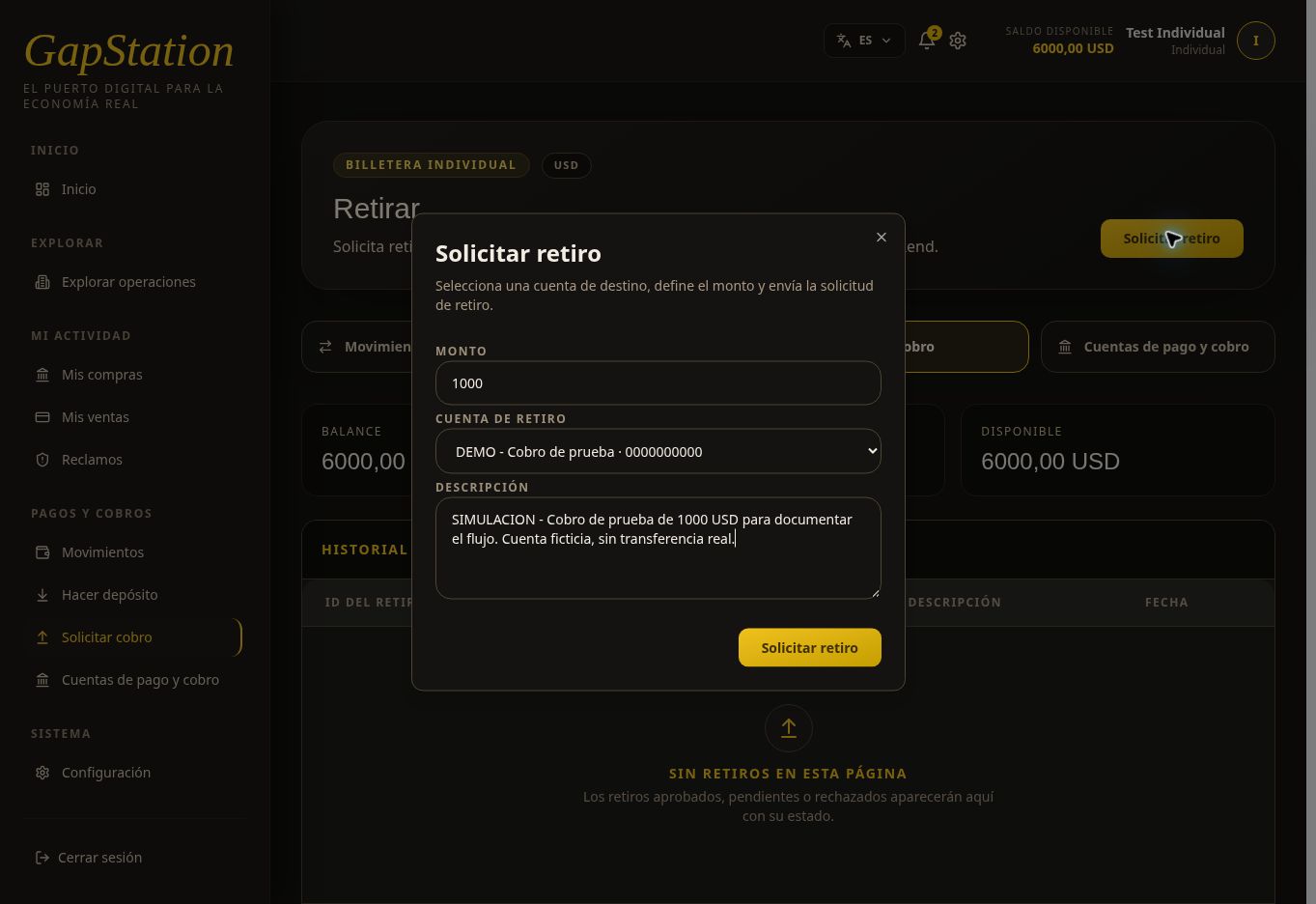
- Open Payments and withdrawals → Request withdrawal.
- Select Request withdrawal.
- Enter the amount. In this example: USD 1,000.
- Select the withdrawal account and verify the destination.
- Add a description that helps identify the request.
- Review the details and select Request withdrawal to submit.
The example description is marked SIMULATION and makes clear that the account is fictitious and no real transfer exists.
3. Verify the Pending status
After submitting the request, the history shows:
| Detail | Verified value |
|---|---|
| Withdrawal ID | 5ae27d4e-0288-424b-9a0c-f2daa8f1f241 |
| Amount | USD 1,000 |
| Status | PENDING |
| Destination | DEMO - Test withdrawal / Fictitious Bank DEMO |
4. Understand the held balance
After refreshing the full page, the following was confirmed:
| Balance | Held | Available |
|---|---|---|
| USD 6,000 | USD 1,000 | USD 5,000 |
The requested amount is reserved while under review. Submitting a request is not the same as receiving payment. Pending status does not confirm a completed withdrawal.
5. Refresh and check approval
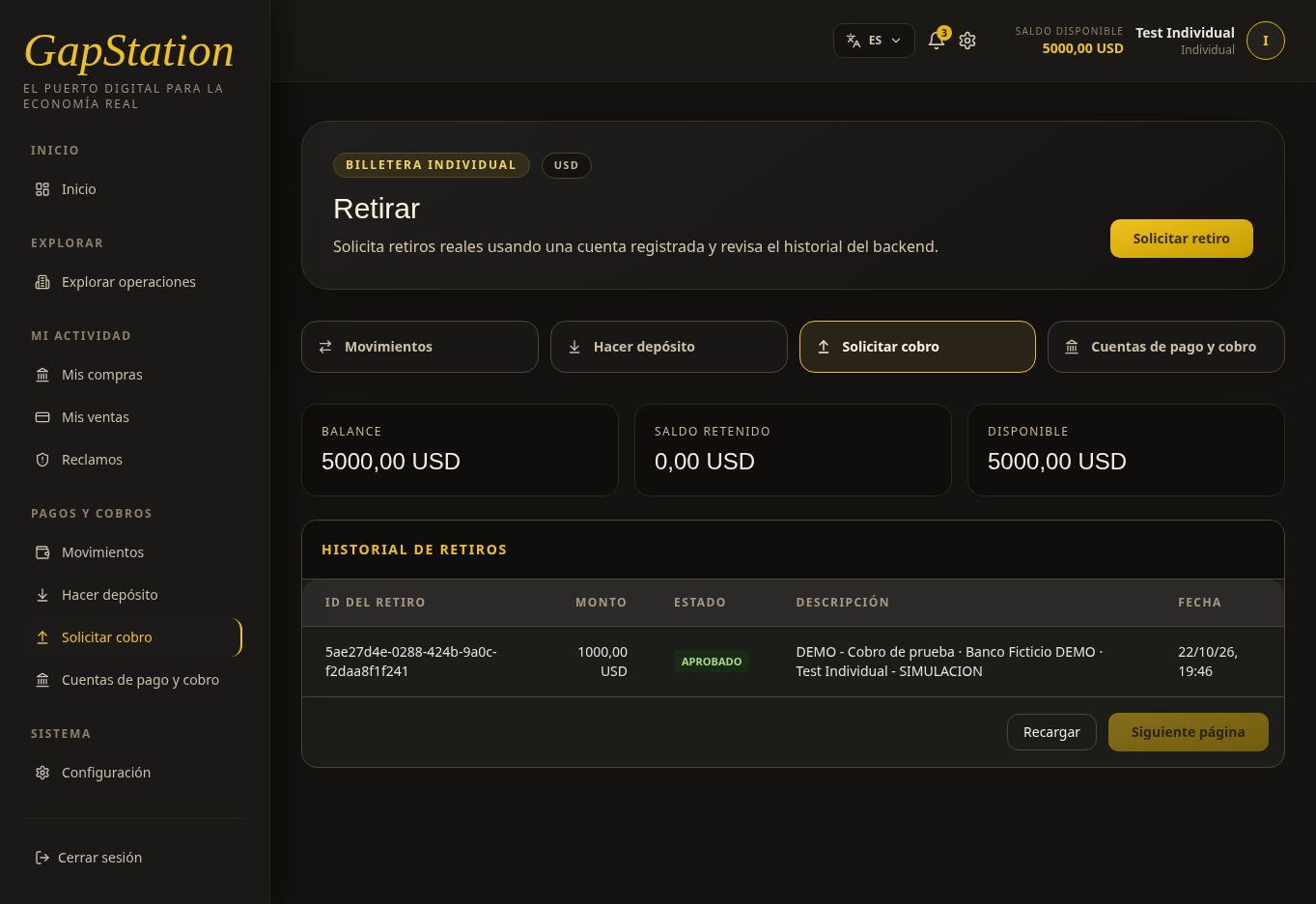
After review, select Refresh or reload the page. The same USD 1,000 request changed from PENDING to APPROVED. You do not need to submit another request.
| Status | Balance | Held | Available |
|---|---|---|---|
| PENDING | USD 6,000 | USD 1,000 | USD 5,000 |
| APPROVED | USD 5,000 | USD 0 | USD 5,000 |
After approval, the reserved USD 1,000 is deducted from the balance and held funds return to zero. Available funds remain USD 5,000 because that amount was already reserved; it is not charged twice.
6. Verify the withdrawal in Transactions
Transactions shows a Withdrawal of −USD 1,000 with COMPLETED status. The example’s final balance is USD 5,000.
7. Check the notification bell
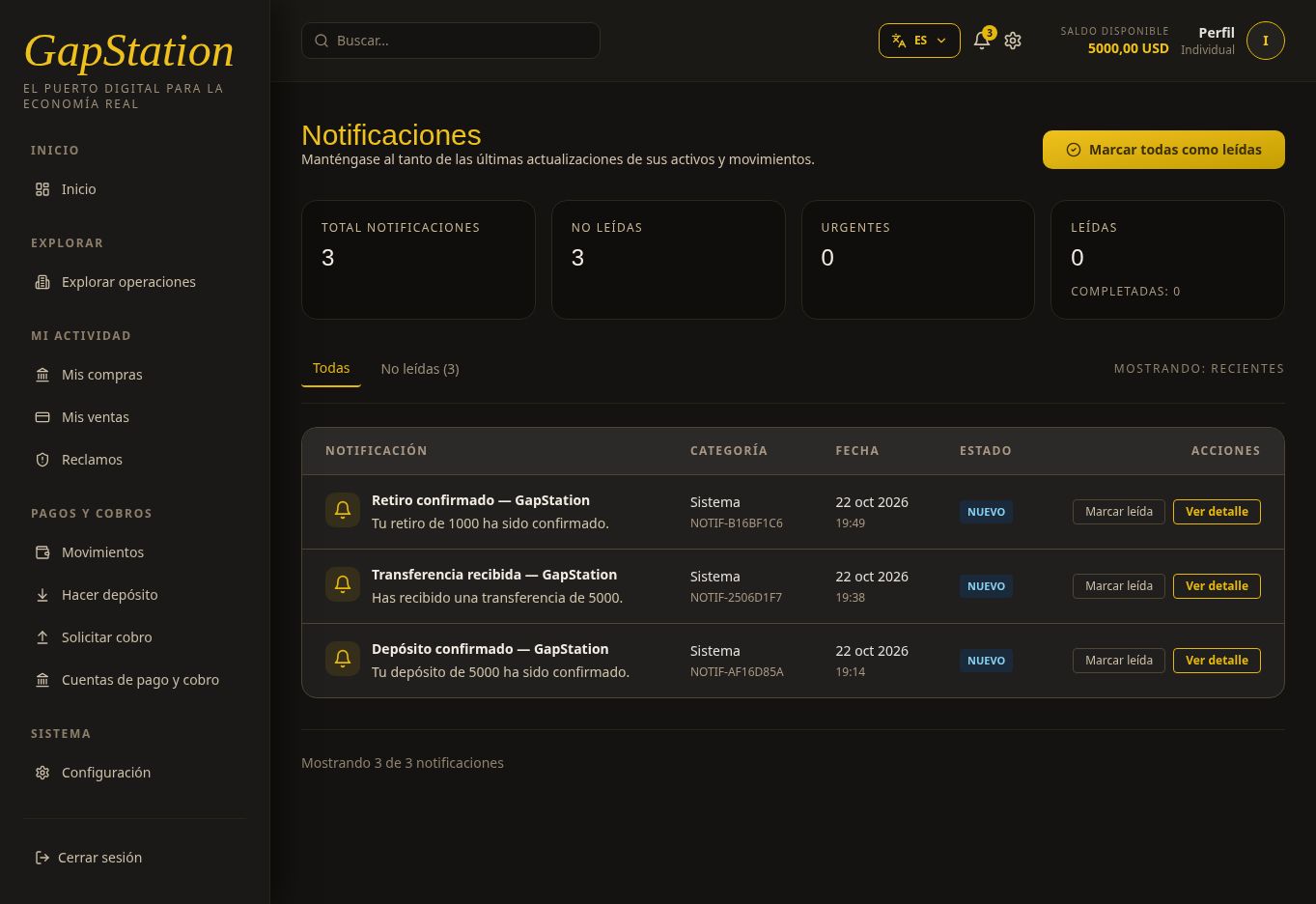
A notification also arrives in the bell. When opened, it shows Withdrawal confirmed — GapStation with the message “Your 1000 withdrawal has been confirmed.”
This demonstration uses simulated funds and a fictitious account. The approval and transaction show the result in the test app; they do not confirm a real bank transfer.
If you need help
Give support the withdrawal ID, status, and amount. Do not post real account details in public channels. This example used only simulated funds and a fictitious destination.
10. Basic account settings
Under Settings, the My account screen contains your individual profile details and options.
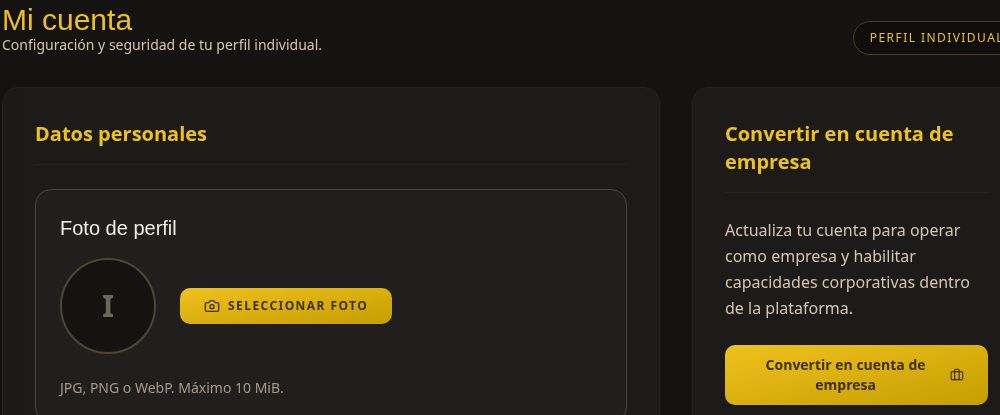
Review your profile
- Open System → Settings or select the gear icon in the top bar.
- Review your personal details: full name, email, phone, and country of residence.
- To update your photo, select Choose photo. The screen accepts JPG, PNG, or WebP files up to 10 MiB.
Security and access
The Security and access section includes Change password. Follow the form instructions when you need to update it, and keep the new password private.
Personal and business accounts
Convert to business account enables business features. It is not required to review purchases as a personal buyer. Check the requirements before starting this process.
Select Back to dashboard to return to the home screen. You can also change the language using the selector in the top bar.
This screenshot is cropped from the test environment to hide email and phone details. No account details were changed during the review.